


AirPlay turns your iPad into a powerful streaming device, allowing you to share your favourite content on larger screens with stunning quality. This wireless technology, created by Apple, establishes a smooth connection between your iPad and compatible devices such as Apple TV, smart TVs, and AirPlay-enabled speakers.
With AirPlay, your iPad becomes a remote control for entertainment, enabling you to:
- Mirror your entire screen for presentations
- Stream high-definition videos from apps like Netflix and YouTube
- Play music through AirPlay 2-compatible speakers
- Share photos with family on the big screen
The technology is compatible with most recent iPad models running iOS 7 or later and connects to an expanding range of AirPlay-ready devices from major manufacturers like Samsung, LG, and Sony. This wide compatibility makes AirPlay a flexible option for anyone seeking to enhance their iPad’s display capabilities.
AirPlay and Its Functionality
AirPlay is Apple’s proprietary wireless streaming technology that enables seamless content sharing between compatible devices. It acts as a digital bridge connecting your iPad to other Apple devices, allowing you to broadcast audio, video, photos, and screen wirelessly.
How AirPlay Works:
- Uses your Wi-Fi network to create a direct connection between devices
- Supports high-quality audio streaming up to 24-bit/44.1kHz
- Enables 4K HDR video streaming with compatible devices
- Maintains low latency for real-time screen mirroring
AirPlay vs. Bluetooth:
- Range: AirPlay reaches up to 50 feet, while Bluetooth typically maxes out at 30 feet
- Quality: AirPlay delivers superior audio quality with no compression
- Bandwidth: Supports simultaneous streaming to multiple devices
- Connection stability: Less prone to interference than Bluetooth
Compatible Devices for AirPlay Streaming:
- Apple TV (3rd generation and newer)
- Smart TVs with built-in AirPlay 2
- HomePod and HomePod mini
- AirPlay 2-enabled speakers
- Mac computers (2018 or later)
- Windows PCs with iTunes installed
AirPlay’s integration with the Apple ecosystem makes it a powerful content-sharing tool. The technology’s ability to maintain high-quality streaming while offering multi-room audio capabilities sets it apart from standard wireless protocols.
Setting Up AirPlay on Your iPad
Setting up AirPlay requires specific hardware and software configurations. Here’s what you need to get started:
Device Requirements:
- iPad running iOS 7 or later
- Apple TV (2nd generation or newer)
- Smart TV with built-in AirPlay support
Network Setup:
- Connect your iPad and AirPlay-enabled device to the same Wi-Fi network
- Your Wi-Fi network must support both 2.4GHz and 5GHz bands
- Keep your devices within 30 feet of each other for optimal performance
Software Updates:
- Update your iPad:
- Go to Settings > General > Software Update
- Install any available updates
- Update Apple TV:
- Navigate to Settings > System > Software Updates
- Select “Update Software” if available
Enable AirPlay on Apple TV:
- Open Settings on Apple TV
- Select AirPlay and HomeKit
- Turn on AirPlay
- Choose security settings:
- Everyone
- Anyone on the Same Network
- Only People Sharing Home
Security Settings:
- Set up an AirPlay password if needed
- Enable “Require Device Verification” for added security
- Consider using HomeKit to restrict access to specific users
Step-by-Step Instructions to Use AirPlay on Your iPad
Let’s dive into the exact process of setting up AirPlay on your iPad:
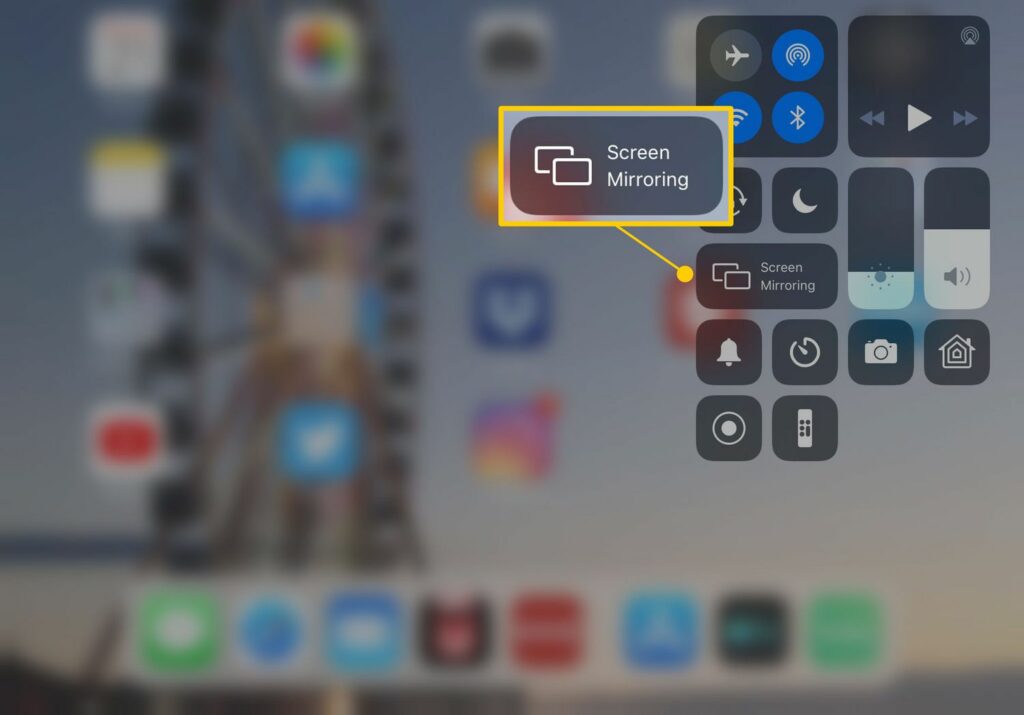
1. Access Control Center
- Swipe down from the upper-right corner of your iPad screen
- Look for the Screen Mirroring icon (two overlapping rectangles)
2. Enable Screen Mirroring
- Tap the Screen Mirroring icon
- Wait for your iPad to scan for available devices
- A list of compatible AirPlay devices appears on your screen
3. Select Your Device
- Choose your Apple TV or AirPlay-compatible smart TV from the list
- Your iPad screen turns black momentarily during connection
- A small blue indicator appears in the status bar when AirPlay is active
4. Complete the Pairing Process
- For first-time connections, a 4-digit code displays on your TV screen
- Enter this code on your iPad when prompted
- Your iPad screen now mirrors on your TV
5. Stop AirPlay Streaming
- Return to Control Center
- Tap Screen Mirroring
- Select “Stop Mirroring” to disconnect
Your iPad maintains the AirPlay connection until you manually disconnect or move out of range. The connection stays active even when your iPad screen locks, making it perfect for extended streaming sessions or presentations.
Streaming Video and Music with AirPlay on Your iPad
AirPlay transforms your iPad into a powerful video and music content streaming hub. Here’s how to stream your favourite media:
Streaming Video Content
- Launch your preferred streaming app (Netflix, YouTube, Disney+)
- Start playing your chosen video
- Tap the AirPlay icon (usually located in the video player controls)
- Select your AirPlay-compatible device
- Your video will now play on the selected screen in full resolution
Music Streaming Setup
- Open your music app (Apple Music, Spotify, Pandora)
- Play your selected track
- Access Control Center
- Long-press the music player widget
- Tap the AirPlay icon
- Choose your target AirPlay speaker or device
Playback Control Tips
- Use your iPad as a remote control while streaming
- Adjust volume using iPad’s side buttons or Control Center
- Play/pause content directly from your iPad’s lock screen
- Switch between multiple AirPlay-enabled speakers for multi-room audio
- Control video playback with standard iPad media controls
Supported Apps
- Video: Netflix, YouTube, Prime Video, Disney+, Apple TV+
- Music: Apple Music, Spotify, Pandora, YouTube Music
- Local Media: Photos app, Files app, Safari web videos
Your iPad maintains full playback control during AirPlay streaming, letting you multitask while your content plays on the selected device. The streaming quality adjusts automatically based on your network connection speed.
Troubleshooting Common Issues When Using AirPlay on Your iPad
AirPlay issues can disrupt your streaming experience, but most problems have straightforward solutions. Here’s how to fix common AirPlay problems:
Screen Mirroring Button Missing
- Check your iPad’s Control Center settings
- Go to Settings > Control Center
- Verify Screen Mirroring is enabled in the included controls list
- Add it back if missing by tapping the green plus icon
Connection Problems
- Ensure your Apple TV is powered on (not just in sleep mode)
- Verify both devices use the same Wi-Fi network
- Check your router’s dual-band settings – devices must be on matching bands
- Disable VPN connections that might interfere with AirPlay
Quick Fixes for Common Glitches
- Force close all apps on your iPad
- Toggle Wi-Fi off and on
- Restart your Apple TV:
- Unplug it for 30 seconds
- Plug it back in
- Wait for full startup
- Restart your iPad:
- Press and hold power + volume button
- Slide to power off
- Wait 30 seconds
- Power back on
Software Updates
- Update your iPad to the latest iOS version
- Check for Apple TV software updates
- Update your apps to their latest versions
If these steps don’t resolve your AirPlay issues, resetting your network settings might help. Go to Settings > General > Reset > Reset Network Settings on your iPad.
Exploring Alternatives to AirPlay for Streaming Content on Your iPad
AirPlay isn’t your only option for streaming content from your iPad to your TV. Here are reliable alternatives:
- Google Chromecast: Plug the Chromecast device into your TV’s HDMI port and stream content through compatible apps like YouTube, Netflix, and Disney+
- HDMI Cable Connection: Use a Lightning-to-HDMI adapter to create a direct, wired connection between your iPad and TV
- Smart TV Apps: Many modern smart TVs offer built-in streaming capabilities through dedicated apps, eliminating the need for additional hardware
- Third-Party Streaming Devices: Roku, Amazon Fire TV Stick, and other streaming devices support iPad screen mirroring through their respective apps
These alternatives can be particularly useful if you’re experiencing AirPlay connectivity issues or using non-Apple TVs. Each option offers unique features and benefits, allowing you to choose the best method for your setup and streaming needs.