


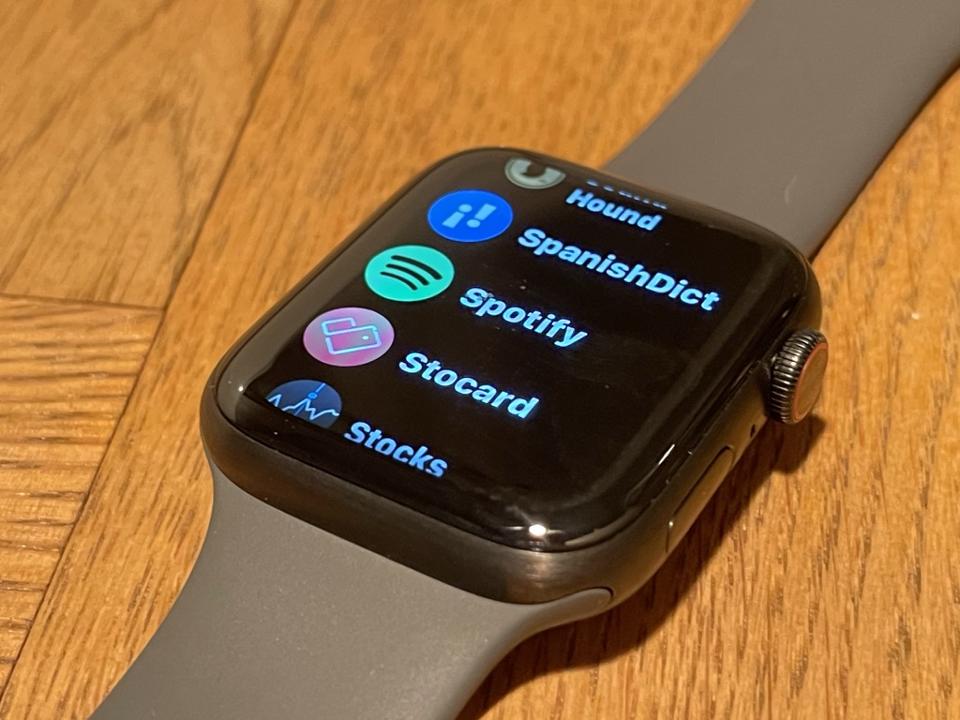
Spotify on Apple Watch transforms the music-on-the-go experience. This powerful combination lets you control playback, browse playlists, and download tracks directly to your watch. Yet, like any technology, it’s not immune to occasional hiccups.
When Spotify stops working on your Apple Watch, it can disrupt your workout routine, commute, or relaxing moments. Issues might range from playback controls not responding to complete app failures. These problems can be particularly frustrating when you’re away from your phone or in the middle of an activity.
This guide walks you through proven solutions to get your Spotify app working smoothly on your Apple Watch again. You’ll learn:
- Quick fixes for common connectivity issues
- Step-by-step troubleshooting methods
- Advanced solutions for persistent problems
- Tips to prevent future disruptions
Whether a free user or a Premium subscriber, these solutions apply to various Spotify-related issues on your Apple Watch. Let’s get your music flowing again.
Spotify Functionality on Apple Watch
The Apple Watch Spotify app offers distinct experiences based on your subscription level. A free account lets you:
- Control music playback through your iPhone
- Browse your library
- Skip tracks
- Adjust volume
Spotify Premium unlocks advanced features:
- Direct streaming without iPhone connection
- Offline listening capabilities
- Downloads for playlists and podcasts
- Higher-quality audio streaming
How Your Apple Watch Connects to Spotify
Your Apple Watch connects to Spotify through either Wi-Fi or Bluetooth. The app syncs with your iPhone’s Spotify account, displaying your playlists, liked songs, and recently played tracks on your watch face.
Download Limits for Premium Subscribers
Premium subscribers can download up to 25% of their Apple Watch storage capacity with music and podcasts. The downloaded content remains accessible during workouts, commutes, or situations where your iPhone isn’t nearby.
What You Can Do with the Spotify App on Apple Watch
The watch app’s interface displays:
- Now Playing screen with album artwork
- Playback controls
- Volume adjustment via Digital Crown
- Playlist navigation
- Library access
With Premium, your Apple Watch becomes a standalone music player, eliminating the need for constant iPhone connectivity. The free version serves as a remote control for your iPhone’s Spotify app, requiring your phone to be within Bluetooth range for music playback.
Common Causes of Spotify Not Working on Apple Watch
Your Apple Watch Spotify experience can hit several roadblocks. Here’s what typically causes these disruptions:
1. Network Connection Issues:
- Mismatched Wi-Fi networks between iPhone and Watch
- Weak or unstable Bluetooth connection
- Interference from other wireless devices
- Poor cellular connectivity for LTE-enabled watches
2. Software-Related Problems:
- Outdated Spotify app version
- Incompatible watchOS software
- App cache corruption
- Background app refresh settings
3. Storage and Performance Issues:
- Insufficient storage space for downloads
- Multiple apps running simultaneously
- Watch memory saturation
- Temporary system glitches
4. Account-Specific Problems:
- Spotify account sync errors
- Login authentication failures
- Premium subscription verification issues
- Device authorization conflicts
These issues manifest differently – from complete app crashes to playback interruptions. You might experience missing controls, failed downloads, or sporadic disconnections. The symptoms vary based on the underlying cause, but they all disrupt your music streaming experience.
A systematic approach to identifying the specific cause helps resolve these issues faster. The root of the problem often lies in one of these categories, making it easier to apply the right fix once it has been identified.
Step-by-Step Troubleshooting Guide
Ready to fix your Spotify issues on Apple Watch? Let’s take a systematic approach to getting your music streaming back on track. These solutions address common connectivity problems and software glitches that affect Spotify’s performance.
1. Check Your Network Connection
Your Apple Watch needs a stable connection to stream Spotify effectively. Here’s what you need to verify:
Wi-Fi Settings
- Open Settings on your Apple Watch
- Tap Wi-Fi
- Select the same network your iPhone uses
- Wait for the connection symbol to appear
Bluetooth Configuration
- Press the Digital Crown to access Settings
- Select Bluetooth
- Ensure the toggle is switched on
- Check if your headphones appear in the device list
Quick Tips for Better Connectivity
- Keep your iPhone within 30-40 feet of your Apple Watch
- Avoid physical obstacles between devices
- Turn off other Bluetooth devices that might interfere
- Check if Airplane Mode is disabled on both devices
Signal Strength Verification
- Look for the Wi-Fi symbol on your watch face
- Check the Bluetooth icon in the control centre
- Ensure both indicators show full strength for optimal performance
These network adjustments create the foundation for smooth Spotify streaming. A stable connection prevents audio dropouts and ensures seamless playback control from your Apple Watch.
2. Restart the Spotify App
Restarting Spotify on your Apple Watch can quickly resolve temporary glitches and performance issues. Here’s how to properly close and restart the app:
1. Force Close Spotify
- Press and hold the side button until the power menu appears
- Release the side button
- Press and hold the Digital Crown until Spotify closes
2. Fresh Start Method
- Wait 30 seconds after closing
- Press the Digital Crown to access your apps
- Locate and tap the Spotify icon
- Allow the app to load fully
Alternative Quick Close Method:
- Double-press the side button to access recent apps
- Swipe left on the Spotify preview
- Tap the ‘X’ to close
This restart method clears temporary app data and refreshes your connection to Spotify’s servers, resolving common playback and connectivity issues without affecting your saved preferences or downloaded content.
3. Restart Your Apple Watch
A quick reboot of your Apple Watch can resolve persistent Spotify issues by clearing temporary data and refreshing system processes. Here’s how to restart your device:
Method 1: Standard Restart
- Press and hold the side button
- Slide the “Power Off” slider to the right
- Wait 30 seconds
- Press the side button to turn it back on
Method 2: Force Restart
Use this method if your watch becomes unresponsive
- Press and hold both the side button and the Digital Crown
- Hold for at least 10 seconds
- Release when you see the Apple logo
This process clears your watch’s RAM, removes temporary files, and resets background processes that might interfere with Spotify’s performance. A restart can fix issues like app freezing, connection problems, and playback errors without affecting your stored data or settings.
4. Update Software and Apps
Outdated software can trigger various Spotify issues on your Apple Watch. Running the latest versions ensures bug fixes, improved performance, and compatibility updates.
To update your Apple Watch:
- Open Watch app on iPhone
- Tap General
- Select Software Update
- Install any available updates
To update Spotify on Apple Watch:
- Open App Store on your Watch
- Scroll to Account
- Tap Updates
- Install pending Spotify updates
Check iPhone Spotify updates:
- Launch App Store
- Tap your profile picture
- Pull down to refresh the updates list
- Update Spotify if available
A fresh sync between your devices after updates helps establish proper connections. Ensure both devices stay charged and connected during the update process to prevent interruptions.
5. Delete and Reinstall the Spotify App
A fresh installation of Spotify can eliminate corrupted files and restore proper functionality to your Apple Watch. Here’s how to remove and reinstall the app:
To delete Spotify from your Apple Watch:
- Press the Digital Crown to access your apps
- Enter Grid View or List View
- Locate the Spotify app icon
- Press and hold until it jiggles
- Tap the ‘x’ icon to delete
To reinstall Spotify:
- Open the App Store on your iPhone
- Search for “Spotify”
- Download and install the app
- Open Watch app on iPhone
- Navigate to “Available Apps”
- Install Spotify on your Watch
A fresh installation creates a clean slate for the app, removing any corrupted cache files or settings that might have caused issues. This process also ensures you’re running the latest version of Spotify, which includes all current bug fixes and improvements.
6. Reset Network Settings on iPhone
A network settings reset can resolve persistent connectivity issues between your iPhone and Apple Watch that affect Spotify’s performance. Here’s how to reset your network settings:
- Open Settings on your iPhone
- Tap General
- Scroll down and select Transfer or Reset iPhone
- Tap Reset
- Choose Reset Network Settings
- Enter your passcode when prompted
The reset process affects both your iPhone and Apple Watch’s network configurations. Your devices will forget:
- Wi-Fi networks and passwords
- Bluetooth connections
- VPN settings
- Cellular preferences
After the reset, reconnect your devices to your preferred Wi-Fi network and re-pair your Bluetooth accessories. This fresh network configuration often resolves syncing issues between Spotify, your iPhone, and Apple Watch.
Note: Your data, apps, and media will remain untouched during this process; only network-related settings will be affected.
When should you seek further help with Spotify on your Apple Watch?
If you’ve tried all the troubleshooting steps and Spotify still refuses to work on your Apple Watch, it’s time to seek professional assistance. Here are clear signs you need expert help:
- Persistent Connection Issues: Your Apple Watch consistently fails to connect with Spotify despite multiple reinstallations
- Syncing Problems: Music won’t sync between your devices even with stable internet connections
- App Crashes: Spotify repeatedly crashes or freezes on launch
- Battery Drain: Unusual battery drain when using Spotify on your Apple Watch
- Error Messages: Recurring error messages that don’t resolve with basic troubleshooting
The Genius Bar at your local Apple Store offers specialized support for Apple Watch issues. Here’s what to expect during your appointment:
- A thorough diagnostic check of your Apple Watch
- Hardware compatibility verification
- Network connectivity assessment
- Software conflict identification
- Potential repair recommendations if hardware issues are detected
Before Your Appointment:
- Back up your Apple Watch data
- Bring your paired iPhone
- List all troubleshooting steps you’ve already tried
- Note specific error messages you’ve encountered
- Document when the problem started
Many Apple Watch users report successfully resolving Spotify issues through Genius Bar appointments, particularly for complex software conflicts or hardware-related problems that affect app performance.
Conclusion: Fixing Spotify Issues on Your Apple Watch!
Spotify issues on your Apple Watch can be frustrating, but a systematic approach to troubleshooting often yields positive results. Start with the basics:
- Check your network connections and Bluetooth settings
- Restart the Spotify app
- Reboot your Apple Watch
- Update your software and apps
- Reinstall Spotify if needed
- Reset network settings as a last resort
Remember that most Spotify issues stem from simple connectivity problems or software glitches. Working through each solution step-by-step helps identify and fix the root cause of your problem. If you’ve tried these methods without success, the Genius Bar experts are ready to help diagnose and resolve more complex issues.
Keep this guide handy for future reference. You’ll soon be back to enjoying your favourite music and podcasts on your Apple Watch. The key to effectively resolving Spotify issues is your persistence in following these troubleshooting steps.
FAQs (Frequently Asked Questions)
What is the purpose of this guide?
The guide provides a step-by-step approach to troubleshooting and fixing Spotify issues on your Apple Watch, ensuring seamless music listening.
What are the differences between Spotify Premium and a free account on Apple Watch?
Spotify Premium allows users to download playlists and podcasts for offline listening, while a free account has limited functionalities and does not support downloads.
What are the common causes for Spotify not working on my Apple Watch?
Common causes include network connection issues, such as being disconnected from Wi-Fi and software glitches that may affect app functionality.
How can I check my network connection for Spotify on Apple Watch?
Ensure your Apple Watch is connected to your iPhone’s Wi-Fi network. You can also verify Bluetooth functionality between both devices.
What should I do if restarting the app doesn’t work?
If restarting the Spotify app doesn’t resolve the issue, try restarting your Apple Watch. This can help clear memory issues and refresh the device’s performance.
When should I seek further help for Spotify issues on my Apple Watch?
If you’ve tried all troubleshooting steps without success, it may be time to seek professional help. Signs include persistent app crashes or inability to connect. Consider making an appointment at a Genius Bar for assistance.