


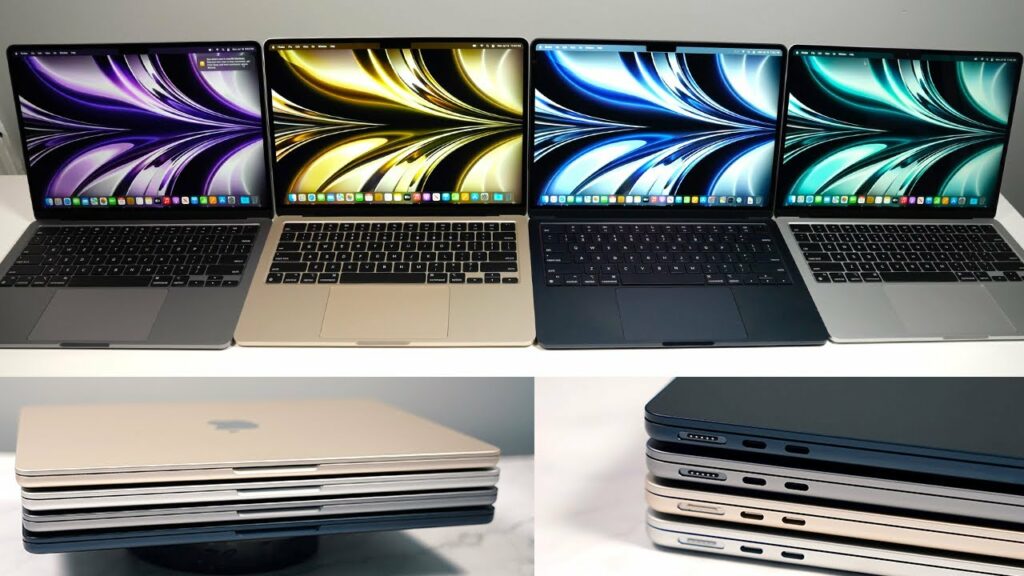
Buying a used Mac can be a smart financial decision, offering substantial savings while still delivering Apple’s renowned quality. Many pre-owned Macs perform admirably years after their initial release, making them attractive options for budget-conscious buyers.
Yet purchasing a used Mac requires careful consideration. You must evaluate multiple factors to ensure a reliable device meets your needs. A thorough inspection can help you avoid common pitfalls like:
- Incompatible software
- Poor performance
- Hidden hardware issues
- Battery problems
- Display defects
This guide walks you through 10 essential checks you should perform before buying a used Mac. You’ll learn to assess critical components, verify compatibility with current software, and spot potential red flags that could lead to costly repairs.
Whether you’re eyeing a MacBook Pro, iMac, or Mac mini, these expert tips will help you make an informed decision and find a reliable used Mac that delivers excellent value for your money.
1. Understand RAM Requirements for Used Macs
RAM plays a crucial role in your Mac’s performance, acting as the workspace for active applications and processes. When buying a used Mac, you must carefully assess the RAM specifications to ensure they match your needs.
Here’s what different RAM configurations can handle:
- 4GB RAM: Basic web browsing, document editing, email management, simple video streaming
- 8GB RAM: Multiple browser tabs, basic photo editing, light multitasking, simple video editing
- 16GB RAM: Professional photo editing, heavy multitasking, video production, virtual machines, complex software development
A used Mac with 4GB RAM might struggle with today’s applications. For optimal performance, aim for at least 8GB RAM. Some older Mac models allow RAM upgrades – check if your potential purchase supports this option to extend its usability.
Pro tip: You can check a Mac’s RAM usage through Activity Monitor to determine if the current configuration meets your needs.
2. Evaluate the Hard Drive Type and Capacity
The storage system in your used Mac significantly impacts its performance and reliability. You’ll encounter two main types of hard drives:
1. HDD (Hard Disk Drive)
- Traditional mechanical storage
- Slower read/write speeds (120-150 MB/s)
- More prone to failure due to moving parts
- Budget-friendly option
- Available in larger capacities
2. SSD (Solid State Drive)
- No moving parts
- Fast read/write speeds (500+ MB/s)
- Higher reliability and durability
- Quieter operation
- Less power consumption
Storage Capacity Guidelines:
- Basic users (web browsing, documents): 256GB minimum
- Creative professionals (photos, videos): 512GB-1TB
- Power users (video editing, gaming): 1TB+
Many older Mac models allow hard drive upgrades. A 128GB SSD costs around $30-50, making it a worthwhile investment for improved performance. Check your specific Mac model’s upgrade compatibility through Apple’s support documentation or authorized service providers.
3. Assess Processor Performance in Old Macs
The processor in your used Mac determines its ability to handle tasks efficiently. Here’s what you need to know about processor performance:
Core Count Matters
- Dual-core processors are suitable for basic web browsing, email, and document editing.
- Quad-core processors can handle photo editing, light video work, and multiple applications.
- Six-core and eight-core processors are perfect for video editing, 3D rendering, and professional applications.
Processor Recommendations by Use Case
- Basic Tasks: Intel Core i3 or i5 (dual-core), M1 chip base model – Perfect for students and office work
- Professional Tasks: Intel Core i7 or i9 (quad-core or higher), M1 Pro/Max chips – Ideal for creative professionals and developers
Pro Tip: Check the processor’s generation – newer generations (like 8th gen Intel and up) offer better performance even with the same core count. Remember that Mac processors can’t be upgraded after purchase, so choose based on your long-term needs.
4. Check Graphics Options in Older Macs
Graphics capabilities play a crucial role in your used Mac’s performance. You’ll encounter two main types of graphics solutions:
Integrated Graphics: Built directly into the processor, uses system RAM for graphics processing, suitable for web browsing, document editing, HD video playback, and basic photo editing.
Dedicated Graphics: Separate graphics card with its memory, delivers superior performance, ideal for video editing, 3D modeling, gaming, and multiple display setups.
When evaluating a used Mac’s graphics, check the specific model. Intel HD Graphics or Intel Iris Graphics indicate integrated solutions. AMD Radeon or NVIDIA GeForce branding signals dedicated graphics.
Pro tip: A Mac with dedicated graphics from 2018 or newer will handle most modern creative applications. Older dedicated graphics might struggle with current software demands, despite their premium status at release.
For basic productivity tasks, integrated graphics work perfectly fine. Creative professionals should prioritize models with dedicated graphics to ensure smooth performance in resource-intensive applications.
5. Confirm macOS Compatibility with Your Software Needs
Apple releases new macOS versions annually, gradually phasing out support for older Mac models. This regular update cycle can impact your software compatibility and security updates.
Current macOS Support Status:
- MacOS Ventura (2022): Supports Macs from 2017 and newer
- MacOS Monterey (2021): Supports Macs from 2015 and newer
- MacOS Big Sur (2020): Supports Macs from 2013 and newer
Before purchasing a used Mac, check its model year against Apple’s compatibility list. A Mac that can’t run current macOS versions will limit your software options and expose you to security risks.
Software Compatibility Checklist:
- Check your essential applications’ system requirements
- Verify if your preferred creative software runs on older macOS versions
- Research alternative apps if needed
Running the latest macOS isn’t always necessary. Many users successfully operate older versions for specific workflows. The key lies in matching your Mac’s capabilities with your software needs.
Pro tip: You can identify your potential Mac’s model year through Apple’s “About This Mac” feature or by checking its serial number on Apple’s website.
6. Investigate Apple Service Programs Before Buying an Old Mac
Apple Service Programs are important for Mac users as they provide free repairs for known manufacturing defects. These programs address specific problems such as display issues and keyboard malfunctions, even if your device is no longer under warranty.
Key Benefits of Apple Service Programs:
- Free repairs for qualifying issues
- Coverage extends to second-hand purchases
- Professional service at Apple-certified locations
- Original parts used in repairs
How to Check Service Program Eligibility:
- Note the Mac’s serial number
- Visit Apple’s support website
- Enter the serial number to view active programs
- Check the program’s expiration date
A Mac model with active service programs might seem risky, but it offers an advantage – you’ll get free repairs if the covered issue appears. The real red flags are Macs with expired service programs without the necessary repairs.
Pro tip: Ask the seller for repair history documentation. If they’ve already claimed the service program benefits, you’ll know that genuine Apple parts have properly addressed the issue.
7. Check the Display Quality When Buying a Used iMac or MacBook
A faulty display can turn your Mac purchase into a costly mistake. Display repairs often cost hundreds of dollars – sometimes matching the price of the used Mac itself.
Here’s what to check during your inspection:
- Dead or Stuck Pixels: Look for small dots that remain black (dead) or show a single color (stuck)
- Screen Uniformity: Check for uneven brightness or color patches across the display
- Ghosting: Watch for persistent image retention when moving windows
- Physical Damage: Search for scratches, cracks, or pressure marks
You can run a thorough display test using free online tools like the Eizo Monitor Test. Display the following test patterns:
- Pure white screen – reveals yellowing or discoloration
- Pure black screen – shows backlight bleeding
- Color gradient – identifies color banding issues
- Moving patterns – detects response time problems
Pro tip: Test the display at different brightness levels and viewing angles. Issues often become more apparent at specific settings or positions.
The built-in display is integral to iMacs and MacBooks – you can’t simply plug in an external monitor to bypass display problems. A thorough inspection now prevents disappointment later.
8. Inspect Battery Health to Avoid Future Issues with Your Used MacBook
Battery health inspection is a critical step when buying a used MacBook. A worn-out battery can turn your portable computer into a stationary one.
Here’s what to check during your battery inspection:
- Cycle Count: Access this through System Information > Power. A count above 1,000 cycles indicates significant wear.
- Battery Status: Look for “Normal” in the condition rating – avoid batteries marked as “Replace Soon” or “Service Battery”
- Physical Signs:
- Swelling or bulging of the MacBook’s bottom case
- Trackpad clicking issues (often caused by battery expansion)
- Uneven surface when placed on a flat table
Quick Battery Test: Unplug the MacBook and monitor battery percentage drop during normal usage for 15-20 minutes. A rapid decline signals battery deterioration.
Battery replacement costs range from $129 to $199 through Apple, depending on your MacBook model. Third-party repairs might cost less but could compromise quality and safety. Factor these potential expenses into your purchase decision.
A healthy battery should maintain at least 80% of its original capacity. Request the seller to provide screenshots of the battery health information or perform these checks during in-person inspection.
9. Check the Condition of Ports on a Second-Hand Mac
The functionality of ports can greatly impact your experience with a Mac. By thoroughly inspecting the ports, you can avoid expensive repairs and ensure your existing devices will be compatible.
Essential port checks:
- Look for signs of physical damage such as bent metal, loose connections, or misaligned openings
- Use a flashlight to check for debris, dust buildup, or broken connector pins inside the ports
- Test each port with compatible devices to confirm data transfer and charging capabilities
- Look for corrosion marks around the port areas, as this may indicate potential water damage
Common ports to inspect:
- USB ports
- Thunderbolt/DisplayPort connections
- Audio jacks
- Power adapter port
- Ethernet port (if available)
Repairs for damaged ports often involve replacing the logic board, which can be an expensive fix that costs more than the value of the Mac itself. If the ports are damaged, it may limit your ability to connect external displays, transfer data, or use essential peripherals.
Pro tip: When inspecting a used Mac, bring along your most frequently used peripherals. This hands-on testing will ensure that the ports you rely on work perfectly for your setup.
Making an Informed Decision When Buying a Used Mac
A systematic approach to evaluating used Macs helps you make a confident purchase decision. Create a checklist incorporating these 10 expert tips and reference it during your search. Pay special attention to:
- RAM specifications
- Storage capacity and type
- Processor performance
- Graphics capabilities
- macOS compatibility
- Service program eligibility
- Display condition
- Battery health
- Port functionality