


Searching through countless web pages can be overwhelming. In today’s world, where information is abundant, being able to find specific words or phrases on any webpage quickly is crucial.
This guide will introduce you to powerful web browsing techniques that will change how you interact with online content. You’ll learn time-saving keyboard shortcuts and advanced search methods that make finding information effortless.
What You’ll Learn:
- How to search for words quickly across different browsers
- Keyboard shortcuts that work on Windows, Mac, and Linux
- Advanced Google search techniques for exploring specific websites
- Tools and features in different browsers that improve navigation
Whether you’re a student looking for sources, a professional verifying data, or someone simply trying to find specific information, these web browsing techniques will make your online experience smoother. We’ve gathered effective methods ranging from basic shortcuts to advanced search strategies to help you become an expert at navigating the web efficiently.
Let’s explore these practical techniques that completely transform how you browse the internet.
Web Browsers and Their Search Functions
Web browsers are your gateway to the internet, each offering distinct features and search capabilities. Let’s explore the unique characteristics of popular browsers and their built-in search functions.
Popular Browsers at a Glance:
1. Google Chrome
- Lightning-fast search indexing
- Case-sensitive search options
- Match count display
- Regular expression support
2. Mozilla Firefox
- Quick Find feature for links-only searches
- Highlight all matches simultaneously
- Search within iframes
- Custom search shortcuts
3. Safari
- Smart Search field integration
- Reader mode search capability
- Enhanced privacy features
- Cross-device search syncing
4. Microsoft Edge
- PDF document search integration
- Collections feature for organized searches
- Immersive Reader search support
- Web Select tool
Each browser implements search functions differently. Chrome excels at speed and simplicity, Firefox offers granular control, Safari prioritizes seamless ecosystem integration, and Edge combines search with productivity tools.
Search Function Variations:
- Chrome and Edge display match counts and allow jumping between results
- Firefox enables searching within specific page elements
- Safari integrates search with system-wide spotlight features
- All browsers support basic text highlighting and match navigation
Mastering browser controls enhances your productivity. You can quickly scan long articles, locate specific information in documentation, or find relevant sections in research papers. These search capabilities become particularly valuable when dealing with lengthy web pages or technical documentation.
Effective use of browser search functions reduces time spent manually scanning content and improves overall browsing efficiency. Different browsers offer varying levels of search sophistication, allowing you to choose the tool that best matches your needs.
1. Using Keyboard Shortcuts to Find Words Quickly
Keyboard shortcuts are the quickest way to find specific words or phrases on any web page. These commands work on all major web browsers, making them valuable tools for efficient browsing.
How to Use Keyboard Shortcuts
For Windows and Linux Users: Ctrl+F
To activate the search function on any web page, follow these steps:
- Press and hold the
Ctrlkey - Press the
Fkey - Release both keys
- Type your search term in the search box that appears
- Press
Enterto find matches
The search box usually appears in the upper-right corner of your browser window, highlighting each match on the page.
For Mac Users: Command+F
Mac users can use a similar process with Command+F:
- Press and hold the
Commandkey (⌘) - Press the
Fkey - Release both keys
- Enter your search term
- Press
Returnto find matches
Features of the Search Function
The search function offers several helpful features:
- Highlighting: All instances of your search term will be highlighted on the page
- Count: The total number of matches found will be displayed
- Navigation: You can move between different instances of your search term using arrows
- Case sensitivity: You have the option to toggle case-matching for more precise searches
- Real-time updates: Results will update as you type
Time-Saving Benefits
Using keyboard shortcuts can save you time by eliminating the need to:
- Scroll through long articles
- Manually scan text for specific information
- Use browser menus or right-click options
- Remember different commands for different browsers
With these shortcuts, you can quickly find multiple instances of words or phrases in seconds, regardless of how long or complex the web page is.
What Content Can Be Searched?
The search function works on all types of text content, including:
- Article body text
- Headers and subheaders
- Navigation menus
- Comments sections
- Hidden text that appears when you hover over something
Persistent Availability for Efficient Research
The search function remains active until you close it, allowing you to modify your search term or look for multiple words without reactivating the shortcut each time. This makes it particularly useful when researching or fact-checking lengthy articles or blog posts.
2. Navigating the Menu Bar for Searches
The menu bar offers an alternative method to find specific words on web pages when keyboard shortcuts aren’t your preferred choice. Each browser implements this feature differently, giving you flexibility in searching.
Mac Menu Bar Navigation
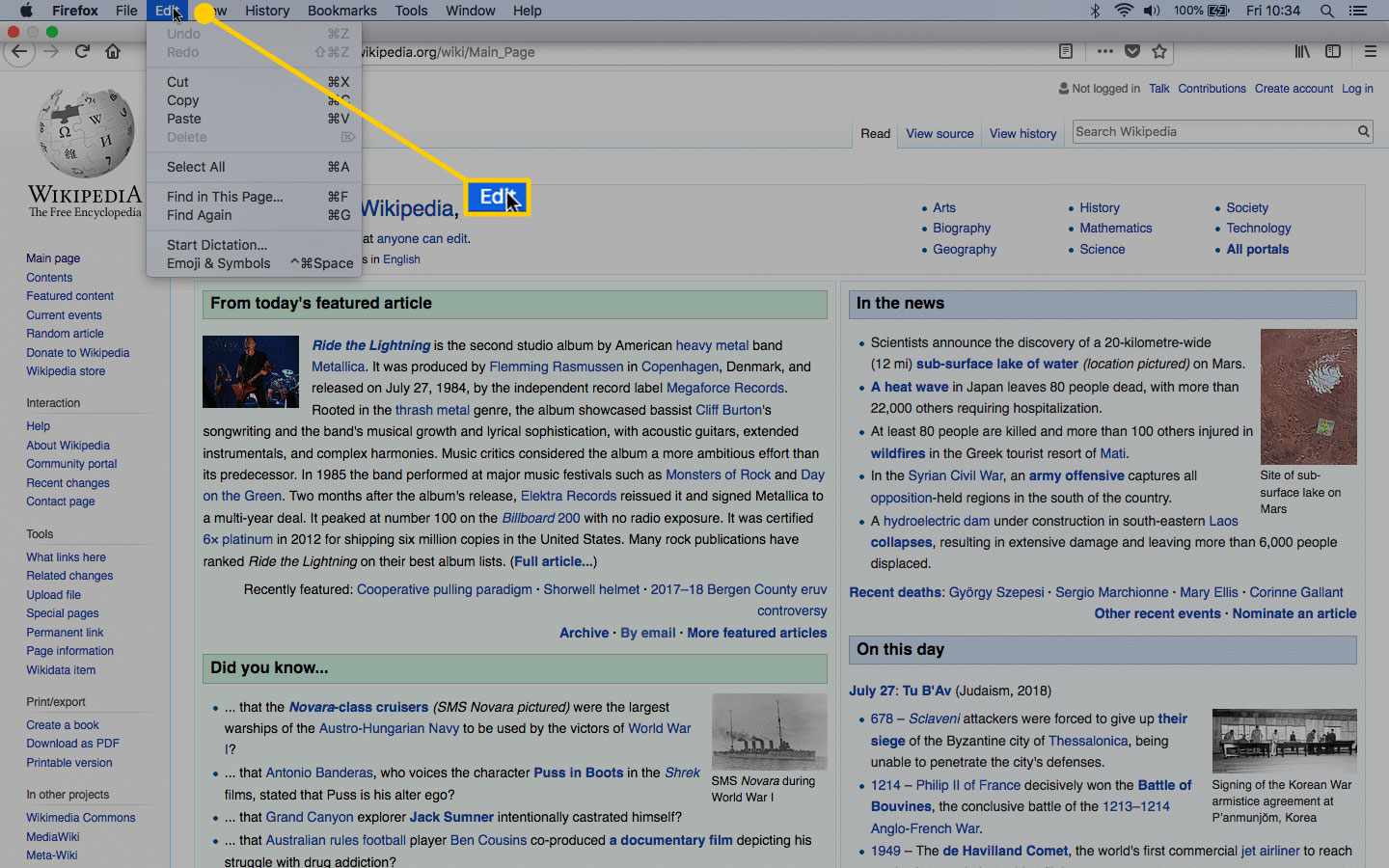
Mac users can access the search function through a consistent path across browsers:
- Click on Edit in the top menu bar
- Select Find in This Page (Safari, Firefox)
- Type your search term in the search box
Safari users benefit from an additional search highlight feature that dims the rest of the page content.
Browser Controls for Word Searching: More than Just Shortcuts
Chrome, Firefox, and Edge users can locate the search function through the browser’s interface:
- Look for the More icon (three vertical dots) in the upper-right corner
- Click to expand the menu
- Select Find or Find in This Page
- Enter your search term
Browser-Specific Features
Different browsers offer unique features to enhance your word-searching experience:
Google Chrome
- Access search through the customizable toolbar
- Use the search counter to track matches
- Navigate between results with arrow buttons
- Toggle case sensitivity
Mozilla Firefox
- Quick Find feature activates by typing ‘/’
- Search within iframes
- Highlight all matches simultaneously
- Regular expression support for advanced searches
Microsoft Edge
- Built-in search preview
- Match counter displays total occurrences
- Search history for recent queries
- Web select tool integration
Opera
- Combined address and search bar
- Instant search activation
- Visual search markers
- Search term highlighting
Mobile Browser Search Options
Mobile users can access page search through similar methods:
Android Browsers
- Tap the three-dot menu
- Select “Find in page”
- Use the search bar at the top
iOS Browsers
- Tap the share icon
- Select “Find on Page”
- Use the search interface at the bottom
These menu-based search methods prove particularly useful when:
- Working on devices with limited keyboard access
- Using browsers in full-screen mode
- Navigating touch-screen interfaces
- Dealing with custom keyboard layouts
3. Advanced Search Techniques Using Google for Specific Terms on Websites
Google’s advanced search features unlock powerful ways to find specific content across websites. The site: command transforms your regular Google searches into precision tools for locating exact information.
Here’s how to perform a site-specific search:
- Open Google
- Type
site:followed by the website domain - Add your search term after a space
- Press Enter
Example: site:wikipedia.org quantum physics
Tips for Effective Site Searches with Google
Using Exact Phrase Search
- Place your search term in quotation marks
- Google will match the exact phrase
- Useful for finding specific quotes or titles
- Example:
site:example.com "artificial intelligence trends"
Excluding Unwanted Results
- Add a minus sign (-) before words to exclude
- Removes pages containing those terms
- Helps filter irrelevant content
- Example:
site:techwebsite.com smartphones -apple
Advanced Operators for Refined Searches
intitle: – Finds pages with your term in the title
Example:
site:example.com intitle:review
filetype: – Locates specific file types
Example:
site:university.edu filetype:pdf research
Combining Search Operators
Create powerful searches by mixing different operators:
site:example.com “exact phrase” -exclude filetype:pdf
Pro Tips for Site Searching
- Use asterisks (*) as wildcards for unknown words
- Add date ranges with
before:andafter: - Combine multiple sites with OR operator
- Search specific URL paths with
inurl:
Search Examples for Common Tasks
Finding product reviews:
site:amazon.com "product name" reviews -sponsored
Locating research papers:
site:edu "research topic" filetype:pdf
Searching news archives:
site:news.com search_term before:2023
These advanced search techniques save time by targeting specific website content—practice combining different operators to create custom searches tailored to your needs.
4. Exploring Additional Methods for Searching Text Online Beyond Basic Techniques
Browser extensions add powerful search capabilities to your web browsing experience. Here are some notable tools:
Text Search Extensions
- Super Search: Highlights multiple keywords simultaneously in different colours
- Find Plus: Enables regex pattern matching for complex text searches
- Search Multi Tabs: Searches across all open browser tabs at once
Mobile-Specific Search Methods
- Use the browser’s “Find in Page” option in the menu (three dots)
- Safari users can tap the share button and select “Find on Page”
- Chrome mobile allows searching through the overflow menu
Third-Party Search Tools
- Ctrl/Cmd+Shift+F: Visual Studio Code-style search across multiple files
- Advanced Search & Replace: Bulk text operations with pattern matching
- Search All Tabs: Cross-tab search functionality
Context-Based Search Effectiveness
Different scenarios call for different search approaches:
- Quick Single-Word SearchesKeyboard shortcuts work best
- Immediate results
- Minimal interface disruption
- Complex Search OperationsBrowser extensions provide better control
- Pattern matching capabilities
- Multiple keyword highlighting
- Research-Heavy TasksThird-party tools offer advanced features
- Cross-reference capabilities
- Search history tracking
These advanced methods complement traditional search techniques, providing enhanced functionality for specific use cases. The choice between keyboard shortcuts and specialized tools depends on the complexity and frequency of your searches.
Unleashing Your Web Browsing Potential Through Quick Word Searches Online
Mastering quick word searches transforms your daily web browsing experience. Each search technique you’ve learned is powerful for cutting through digital clutter and pinpointing exactly what you need.
Make these shortcuts part of your daily browsing routine:
- Start with simple Ctrl+F searches on familiar websites
- Graduate to advanced site-specific Google searches
- Practice different search methods across various browsers
- Test search functions on both desktop and mobile devices
Your proficiency with these tools directly impacts your productivity. A skilled web searcher can locate specific information in seconds, while others might spend minutes scrolling through content pages.
Think of these search skills as your digital compass – they guide you to your destination across the vast internet landscape. The time you save adds up significantly, allowing you to focus on understanding and using the information rather than hunting for it.
These techniques become particularly valuable when:
- Researching complex topics
- Fact-checking information
- Finding specific quotes or references
- Analyzing long-form content
- Comparing multiple sources
Discussion about this post