



Buying a computer doesn’t have to drain your bank account. With the right strategies, you can get a powerful machine that meets your needs while keeping costs down. The computer market offers diverse options – from sleek laptops and robust desktops to quality refurbished systems.
A smart purchase starts with understanding your specific needs:
- Performance requirements – gaming, video editing, or basic web browsing
- Form factor preferences – portable laptops vs space-saving desktops
- Budget constraints – new, refurbished, or DIY options
In this guide, you’ll discover practical money-saving techniques backed by real examples. You’ll learn how to:
- Identify the best times to buy
- Choose between new and refurbished systems
- Make strategic upgrade decisions
- Find legitimate deals and discounts
These proven strategies have helped countless buyers save hundreds – even thousands – of dollars on their computer purchases. Let’s explore each tip in detail to help you make an informed, budget-friendly decision.
1. Buy a Slightly Older Model
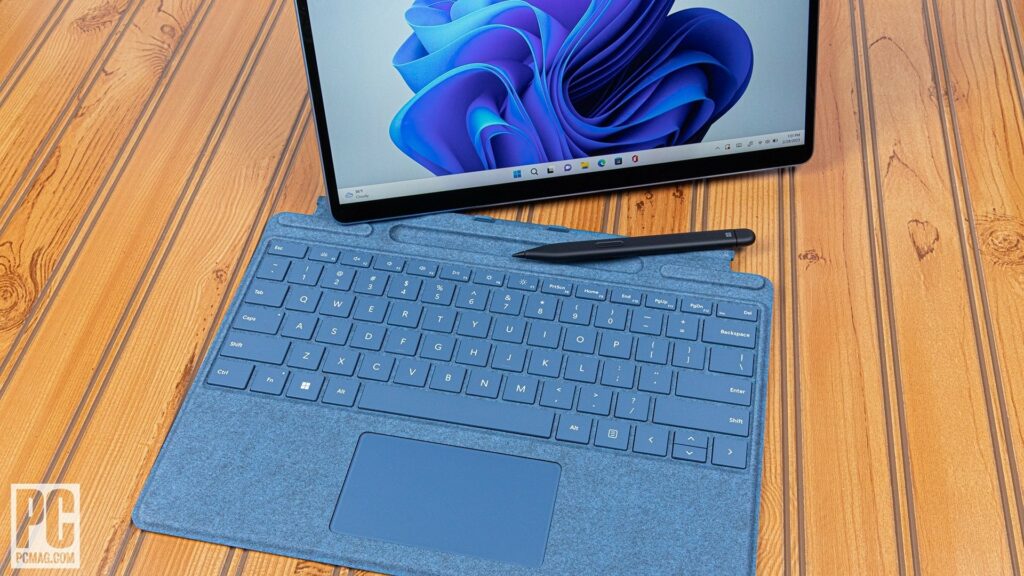
Tech companies frequently release new computer models, creating opportunities to save money on slightly older versions. The price difference between new and previous-generation models can reach up to 30-40%, while performance differences often remain minimal.
Let’s look at real examples:
- MacBook Air M1 (2020) vs M2 (2023)
- 2020 Model: $799
- 2023 Model: $1,199
- Performance difference: 10-15% improvement
- Savings: $400
- Dell XPS 15 9500 vs 9510
- 9500 (Previous gen): $1,399
- 9510 (Current gen): $1,899
- Similar specs: 16GB RAM, 512GB SSD
- Savings: $500
These older models maintain strong performance capabilities:
- Full software compatibility
- Regular security updates
- Similar build quality
- Identical warranty coverage
Many retailers offer discounted prices on base models from previous generations to clear inventory space. You’ll find these deals both online and in physical stores, with the best discounts appearing when newer versions launch.
2. Consider Refurbished Systems
Refurbished computers are pre-owned devices restored to like-new condition through professional cleaning, testing, and repairs. These systems typically come from customer returns, display models, or units with minor defects that have been fixed.
What to Look for When Buying Refurbished:
- Certified Refurbisher Status – Choose systems from authorized refurbishers like Apple Certified Refurbished, Dell Outlet, or Microsoft Certified
- Warranty Coverage – Look for at least a 90-day warranty, though many offer 1-year protection
- Return Policy – Ensure there’s a minimum 30-day return window
- Detailed Product Description – Check for clear information about the item’s condition and any replacements/repairs
Typical Savings by Brand:
- Apple Certified Refurbished: 15-20% off retail
- Dell Outlet: 20-40% off retail
- Amazon Renewed: 25-50% off retail
- Best Buy Refurbished: 30-60% off retail
Many refurbished computers undergo more rigorous testing than new units. Amazon Renewed, for example, puts devices through a 40-point inspection process before resale. These strict quality controls help ensure you receive a reliable device at a significant discount.
3. Purchase a Base Model and Upgrade Yourself
Manufacturers charge premium prices for pre-upgraded systems, but you can save hundreds by starting with a base model and upgrading it yourself. A RAM upgrade that costs $300 from the manufacturer might cost just $100 when you buy and install it independently.
Common DIY Upgrades:
- RAM: Boost from 8GB to 16GB for $50-$70
- Storage: Add a 1TB SSD for $80-$100
- Graphics Card: Mid-range options start at $200
Real Cost Comparison:
Dell XPS 15 base model ($1,299) + 32GB RAM upgrade ($150) = $1,449 Dell XPS 15 pre-configured with 32GB RAM = $1,799 Total savings: $350
Tips for Safe Upgrades:
- Check your warranty terms before opening the device
- Research compatibility with your specific model
- Watch detailed video tutorials for your exact system
- Use anti-static protection when handling components
Base models often come with sufficient processors and motherboards – the expensive components you can’t easily upgrade. Focus your upgrades on RAM and storage, which offer the best value for performance improvements.
4. Build Your Own PC (For Advanced Users)
Building your own PC unlocks significant cost savings while delivering a customized system that matches your exact needs. A custom-built gaming PC can cost 20-30% less than pre-built alternatives, with the added benefit of hand-picked components.
Essential Components for a Custom Build:
- Motherboard
- CPU (processor)
- RAM
- Storage (SSD/HDD)
- Graphics card
- Power supply
- Case
- CPU cooler
Sample Gaming Build ($1,200):
- AMD Ryzen 5 7600X
- NVIDIA RTX 3060 Ti
- 16GB DDR5 RAM
- 1TB NVMe SSD
- 750W Gold PSU
Video Editing Build ($2,000):
- Intel i7-13700K
- NVIDIA RTX 4070
- 32GB DDR5 RAM
- 2TB NVMe SSD
- 850W Platinum PSU
You can source parts through reliable retailers like Newegg, Amazon, or Micro Center. These stores offer competitive prices and regular sales on components. Many online communities provide build guides and troubleshooting support for first-time builders.
The assembly process requires basic technical knowledge and careful attention to component compatibility. PCPartPicker helps verify part compatibility and tracks the best prices across multiple retailers.
5. Upgrade Your Current PC Instead of Buying New
Your existing computer might have more life left than you think. A few strategic upgrades can dramatically improve performance at a fraction of the cost of a new system.
When to Consider Upgrading:
- Your PC boots slowly but runs fine once started
- Programs take too long to load
- You’re running out of storage space
- Games or applications stutter during use
High-Impact Upgrades:
- Solid-State Drive (SSD)Reduces boot time from minutes to seconds
- Programs launch 4-5x faster
- Cost: $50-100 for 500GB
- RAM UpgradeIdeal for multitasking
- Improves system responsiveness
- Cost: $30-60 for 8GB
- Graphics CardBetter gaming performance
- Faster video rendering
- Cost: $200-400 for mid-range cards
A $300 investment in targeted upgrades can match the performance of a $1000 new PC. Check your computer’s specifications and compatibility before purchasing any components. Some laptops have soldered components that can’t be upgraded, making them unsuitable for this money-saving strategy.
6. Look for Coupons, Rebates, and Deals Online
Digital coupons can slash your computer purchase costs by 10-30%. Popular coupon sites like RetailMeNot, Slickdeals, and Rakuten offer promo codes for major retailers including Best Buy, Dell, and Lenovo.
Top money-saving strategies:
- Sign up for manufacturer newsletters to receive exclusive discount codes
- Install browser extensions like Honey to automatically find and apply coupons
- Check student discounts through platforms like UNiDAYS or StudentBeans
- Use cashback apps like TopCashback or Ibotta for additional savings
Rebate tips:
- Take screenshots of rebate forms and confirmation emails
- Submit claims within the specified timeframe
- Keep copies of receipts and UPC codes
- Track submission status through manufacturer portals
Many retailers price-match competitors’ deals. Best Buy’s Price Match Guarantee covers major online retailers like Amazon, while Micro Center matches local store prices. You can stack these price matches with manufacturer rebates for maximum savings.
7. Buy the Computer at the Right Time During Sales Events
Strategic timing can slash hundreds of dollars off your computer purchase. Here’s when to shop for the best deals:
Prime Shopping Seasons:
- Black Friday (November): Discounts up to 40% on laptops and desktops
- Cyber Monday (Following Black Friday): Online-exclusive deals with free shipping
- Back-to-School (July-September): Student discounts and bundle offers
- Amazon Prime Day (July): Competitive pricing across multiple retailers
Price Drop Patterns:
- New model releases trigger price cuts on previous versions
- End of financial quarters (March, June, September, December)
- Holiday weekends (Memorial Day, Labor Day, Presidents Day)
Real Savings Examples:
- MacBook Air: Regular $999 → Black Friday price $799
- Gaming PCs: Regular $1,500 → Cyber Monday price $1,100
- Dell XPS: Regular $1,299 → Prime Day price $999
Pro Tip: Create price alerts on major retailers’ websites to track specific models and receive notifications when prices drop during these peak shopping periods.
8. Opt for Free or Discounted Software Instead of Paying Full Price For Bundled Software Packages
Pre-installed software packages can add hundreds of dollars to your computer’s price tag. Many manufacturers include paid versions of office suites, antivirus programs, and other applications you might never use.
Here’s how to save money on essential software:
Office Suite Options
- LibreOffice offers free word processing, spreadsheets, and presentations
- Google Workspace provides cloud-based alternatives at no cost
- Microsoft Office 365 student discounts can save up to 50%
Security Software
- Windows Defender comes built-in with Windows 10/11
- Avast Free and Malwarebytes offer robust free protection
- Educational institutions often provide free antivirus licenses
Creative Tools
- GIMP replaces Photoshop for basic image editing
- DaVinci Resolve serves as a free video editing alternative
- Blender provides 3D modeling capabilities at zero cost
Ask your retailer to remove pre-installed software packages during purchase. This practice, known as “debloating,” can reduce your computer’s price while improving its performance. Many retailers offer this service at no additional cost.
Smart Buying Strategies That Work!
These eight money-saving strategies put you in control of your computer purchase. By implementing these tips – from exploring refurbished options to timing your purchase during sales events – you can secure a reliable computer that meets your needs without breaking the bank.
Remember: A smart computer purchase isn’t about getting the cheapest option. It’s about maximizing value while minimizing costs. Take time to evaluate your needs, research your options, and apply these strategies systematically.
Ready to start saving? Bookmark this guide and reference it during your next computer purchase. Your wallet will thank you, and you’ll end up with a computer that serves you well for years to come.
Pro tip: Start your computer shopping journey by listing your must-have features. This helps you focus on what truly matters and avoid unnecessary expenses.
Discussion about this post