


Tips to manage your time in Calendar using Google Calendar for effective scheduling and productivity.
Setting Up Google Calendar for Optimal Time Management
Creating and Accessing Your Google Account
Alright, first things first. To get rolling with Google Calendar, you’ve got to have a Google account. If you don’t have one yet, it’s as easy as pie to set up. Just head over to Google’s sign-up page and fill in your details. Already have an account? Great! Just log in and you’re good to go. Your Google account is basically your ticket to not just Google Calendar, but a whole suite of productivity tools.
Customizing Calendar Settings for Efficiency
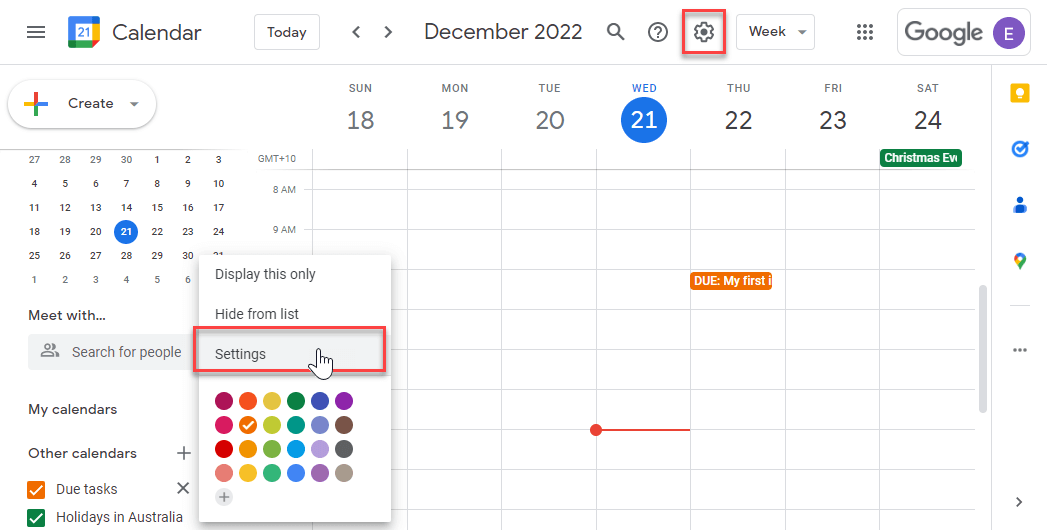
Now that you’re in, it’s time to make Google Calendar work for you. Dive into the settings and tweak them to fit your style. You can set your default view to day, week, or month, whatever floats your boat. Also, don’t forget to set your working hours. This way, when someone tries to schedule a meeting outside your hours, they’ll get a heads-up. And those notifications? Customize them so you’re reminded of events in a way that suits you—maybe a pop-up 10 minutes before or an email an hour ahead.
Navigating the Google Calendar Interface
Once your settings are all sorted, take a moment to get familiar with the interface. Google Calendar is pretty straightforward, but knowing your way around can save you a ton of time. Explore the different views—day, week, month—and see which one helps you visualize your schedule best. And hey, if you’re into shortcuts, Google Calendar’s got plenty. They can help you zip around without lifting your fingers off the keyboard. The more you use it, the more you’ll see how it can streamline your scheduling and keep your time management on point.
Utilizing Google Calendar Features to Enhance Productivity
Color-Coding Events for Visual Clarity
Ever find yourself squinting at your calendar, trying to figure out what’s what? Color-coding is your new best friend. By assigning different colors to various types of events, you can quickly glance at your calendar and know exactly what’s on your plate. For instance, use blue for work meetings, green for personal appointments, and red for deadlines. This visual separation helps keep your schedule organized and easy to read, reducing the mental load of figuring out your day.
Integrating Google Tasks for Seamless Task Management
Why juggle multiple apps when Google Calendar can handle it all? By integrating Google Tasks, you can manage your to-do list right alongside your schedule. Adding tasks is as simple as adding an event. Just click on a date, select “Task,” and jot down what you need to do. You can even set due dates and prioritize tasks. This way, everything you need to tackle is in one place, making it easier to plan your day and boost your productivity.
Using Time Insights for Better Scheduling
Time Insights is like having a personal assistant that tells you how you’re spending your time. It provides a breakdown of how much time you allocate to meetings, tasks, and free time. With this feature, you can identify patterns and adjust your schedule accordingly. Maybe you’re spending too much time in meetings and not enough on actual work. Time Insights helps you strike a better balance, ensuring your time is used wisely.
Advanced Scheduling Techniques with Google Calendar
Blocking Out Focus Time for Deep Work
Sometimes you just need to get stuff done without anyone bugging you. That’s where blocking out focus time in Google Calendar really shines. You can dedicate specific time slots just for you to work on important tasks without interruptions. During these blocks, try not to schedule meetings or let distractions creep in. It’s a game-changer for staying on top of your priorities and making sure you actually finish those big projects.
Automating Meetings with Appointment Slots
If you’re constantly setting up meetings, Google Calendar’s Appointment Slots feature is a lifesaver. You can create blocks of time when you’re available for meetings and share this with others. They can then pick a slot that works for them, all without the back-and-forth emails. It’s like having a personal assistant who handles your scheduling. This automation not only saves time but also makes your life a whole lot easier.
Leveraging the ‘Find a Time’ Feature
Scheduling meetings with multiple people can be a headache. But with Google Calendar’s ‘Find a Time’ feature, it’s a breeze. This tool helps you see when everyone is free and suggests the best times to meet. No more endless email threads trying to find a time that works for everyone. It’s a simple way to streamline the process and get everyone on the same page without the hassle.
Collaborating and Sharing Calendars for Team Efficiency
Sharing Calendars with Colleagues and Family
Sharing your Google Calendar is a game-changer for keeping everyone in sync. Whether it’s with coworkers or family, it helps everyone stay on the same page. To share your calendar, just hover over your calendar name, click the arrow, and select ‘Share this Calendar.’ Enter the email addresses of those you want to share with and adjust permissions as needed. This way, everyone can see or even edit events, making planning group activities or meetings a breeze.
Coordinating Meetings Across Time Zones
Dealing with different time zones can be a headache, but Google Calendar makes it easier. You can add multiple time zones to your calendar view, which helps when scheduling meetings with folks in other parts of the world. Go to Settings, find the time zone section, and add the ones you need. Now, when you plan a meeting, you can see what time it is for everyone involved, reducing confusion and making sure nobody misses out.
Using Calendar Sharing for Project Management
For project management, shared calendars are super handy. You can create a calendar for each project and share it with your team. This means everyone knows the deadlines, meetings, and important milestones. Keep it updated, and you’ll avoid any last-minute surprises. Plus, it helps everyone track progress and stay motivated. By having a shared view of what’s coming up, the whole team can work more efficiently and keep projects on track.
Maximizing Time Management with Google Calendar Integrations
Syncing with Other Calendars for Unified Scheduling
Syncing Google Calendar with other platforms like Microsoft Outlook or Apple Calendar can be a game-changer for managing your schedule. Imagine having all your appointments and meetings in one place, no matter where they were initially set up. This synchronization helps prevent scheduling conflicts and gives you a clear view of your commitments across different platforms. It’s like having a master calendar that keeps everything in check, making sure you don’t double-book or miss out on important events.
Integrating with Email for Seamless Notifications
By integrating Google Calendar with your email, you can receive notifications about upcoming events straight to your inbox. This means you won’t have to constantly check your calendar app to stay updated. You can set up custom alerts that notify you via email or pop-up at times that suit you, like 10 minutes before a meeting or an hour before a deadline. This integration ensures you stay informed and can prepare adequately for your tasks and appointments.
Exporting Calendar Data to Google Sheets
Exporting your calendar data to Google Sheets can provide you with a comprehensive view of how you manage your time. This feature is particularly useful for project management or when you need to analyze your scheduling habits.
By having your calendar data in a spreadsheet, you can easily track how much time you spend on different activities, identify patterns, and make adjustments to improve your productivity. It’s a practical way to reflect on your time management and make informed decisions about how to optimize your schedule.
Tips to Manage Your Time in Calendar Effectively
Setting Up Custom Notifications for Events
Custom notifications are your best friend when it comes to staying on top of your schedule. Instead of constantly peeking at your calendar, set up alerts that give you a heads-up before events.
You can choose to receive these as emails or pop-ups, and decide how early you want to be notified—maybe ten minutes before or even a day ahead. This way, you’ll never miss a beat and can keep your focus on what’s important.
Utilizing Smart Suggestions for Quick Scheduling
Google Calendar’s smart suggestions can be a real time-saver. When creating events, the calendar often suggests meeting times and locations based on your past activities.
This feature cuts down the back-and-forth of scheduling, letting you set up appointments in just a few clicks. It’s like having a personal assistant who knows your routine and preferences, making your scheduling process smooth and efficient.
Creating Time Blocks for Focused Work
Time blocks are a game-changer for productivity. By setting aside specific chunks of your day for focused work, you can tackle tasks without interruptions. Use Google Calendar to mark these periods, signaling to yourself and others that you’re not available for meetings or other distractions. This practice helps you stay on track with your priorities, ensuring you dedicate enough time to the tasks that matter most.
Reflecting and Adjusting with Google Calendar Insights
Reviewing Time Insights for Continuous Improvement
Ever wonder where all your time goes? Google Calendar’s Time Insights feature breaks it down for you. It’s like having a mirror for your schedule, showing exactly how much time you’re spending on different tasks and meetings.
By regularly checking these insights, you can spot patterns that might be holding you back. Maybe you’re spending too much time in meetings or not enough time on focused work. Use these insights to tweak your schedule and make more room for what truly matters.
Adjusting Scheduling Habits Based on Insights
Once you’ve got a handle on where your time is going, it’s time to make some changes. If you notice that your mornings are eaten up by emails or that you’re double-booking yourself, it’s time to adjust. Start by setting specific times for different tasks, like emails or meetings, and stick to them. This way, you’re not constantly switching gears, which can be a real productivity killer. Over time, you’ll find a rhythm that works, making your days smoother and more productive.
Using Feedback to Optimize Calendar Usage
Feedback isn’t just for performance reviews. Use the feedback you get from Time Insights to make your calendar work better for you. Maybe your afternoons are the most productive, but they’re filled with meetings.
Try shifting your schedule to have meetings in the morning, leaving the afternoon free for deep work. Or, if you find you’re most creative at night, adjust your tasks to take advantage of that. By using feedback effectively, you can turn your calendar into a tool that helps you work smarter, not just harder.
Frequently Asked Questions
How do I get started with Google Calendar?
To start using Google Calendar, you need a Google account. Once you have that, you can access Google Calendar through your web browser or download the app on your smartphone. After signing in, you can begin adding events and customizing your calendar settings.
Can I use Google Calendar to manage tasks?
Yes, Google Calendar can be integrated with Google Tasks. This allows you to create and manage to-do lists directly from your calendar, making it easier to organize your tasks alongside your scheduled events.
How do I share my calendar with others?
To share your Google Calendar, go to the ‘Settings and sharing’ option for the calendar you want to share. There, you can add the email addresses of the people you want to share with and set their permission levels, such as view-only or edit access.
What is the ‘Find a Time’ feature?
The ‘Find a Time’ feature in Google Calendar helps you schedule meetings by suggesting times when all participants are available. This tool is especially useful for coordinating with multiple people and finding a time that works for everyone.
How can I color-code events in Google Calendar?
To color-code events, simply click on an event and select the color option. You can assign different colors to different types of events, like work meetings or personal appointments, to make your calendar more visually organized.
What are Google Calendar’s Time Insights?
Time Insights is a feature that shows you how you spend your time. It provides a breakdown of your activities, helping you understand where your time goes and allowing you to make adjustments for better time management.
Discussion about this post