


Sharing your Wi-Fi password between iPhone and Android devices doesn’t have to be a complex task. Whether you’re hosting guests, setting up a new device, or helping colleagues connect at work, quick and secure password sharing has become essential in our connected world.
Common situations where you’ll need to share Wi-Fi passwords include:
- Setting up smart home devices
- Connecting friends’ phones during social gatherings
- Helping customers access business networks
- Configuring work devices for team members
You can share your Wi-Fi credentials from an iPhone to Android through several methods:
- QR code generation using specialized apps
- Manual password sharing
- Third-party password management tools
The most efficient QR code method allows Android users to connect instantly by scanning the generated code. This guide uses the Visual Codes app to create a seamless Wi-Fi sharing experience between your iPhone and Android devices.
Wi-Fi Passwords
A Wi-Fi password is your network’s first defense against unauthorized access. Let’s break down the key components you need to understand:
1. SSID (Service Set Identifier)
Your SSID is your Wi-Fi network’s name – the identifier that appears when devices scan for available networks. You’ll see this name in your device’s Wi-Fi settings, such as “Smith_Family_Network” or “Coffee_Shop_5G”.
2. Security Protocols: WPA vs WEP
Your Wi-Fi network uses one of two main security protocols:
- WPA (Wi-Fi Protected Access)Current industry standard
- Stronger encryption
- Multiple versions: WPA2, WPA3
- Recommended for most modern devices
- WEP (Wired Equivalent Privacy)Older security protocol
- Less secure encryption
- Compatible with legacy devices
- Rarely used in modern networks
3. Why Your Wi-Fi Password Matters
A strong Wi-Fi password protects your:
- Personal data and browsing activity
- Connected smart home devices
- Network bandwidth from unauthorized users
- Online banking and financial transactions
The ideal Wi-Fi password combines uppercase and lowercase letters, numbers, and special characters. Your password should be at least 12 characters long and avoid common phrases or personal information.
Finding Your Wi-Fi Password on an iPhone
Accessing your Wi-Fi password on an iPhone requires a few simple steps. Here’s how you can locate your network credentials:
1. Open Settings App
- Tap the gray gear icon on your home screen
- Look for the Wi-Fi option near the top
2. Access Wi-Fi Settings
- Tap Wi-Fi to enter network settings
- Ensure Wi-Fi is switched on (green toggle)
- Look for the network you’re currently connected to (marked with a checkmark)
3. View Network Details
- Tap the (i) information icon next to your network name
- Your network name (SSID) appears at the top
- Scroll down to find the password field
4. Reveal Password
- Use Face ID or Touch ID to authenticate
- Tap the hidden password field
- Your Wi-Fi password appears in plain text
Pro Tips:
- Take a screenshot of your Wi-Fi credentials for quick reference
- Store your password in Notes app with password protection
- Write down complex passwords in a secure location
Note: If you can’t find your Wi-Fi password through these steps, you might need to check your router settings or contact your network administrator.
Using the Visual Codes App for QR Code Generation
The Visual Codes app transforms Wi-Fi password sharing into a quick, seamless process. This free iOS app creates QR codes that store your network credentials securely.
Key Features of Visual Codes:
- One-tap QR code generation
- Multiple network storage capability
- Custom naming for saved codes
- Password encryption
- Easy code sharing options
Creating Your Wi-Fi QR Code:
- Download Visual Codes from the App Store
- Select “Add Code” option
- Choose “Connect to WiFi” template
- Input your network name (SSID)
- Enter your Wi-Fi password
- Select WPA security type
- Name your QR code
- Tap “Create Code”
The generated QR code acts as a digital key to your network. When Android users scan this code with their camera, their device automatically recognizes the encrypted network information. This eliminates manual password typing and reduces connection errors.
Alternative QR Generators:
- QR Code Generator
- Qrafter
- QR Creator
These apps offer similar functionality if Visual Codes isn’t available in your region.
Sharing the QR Code with Android Users
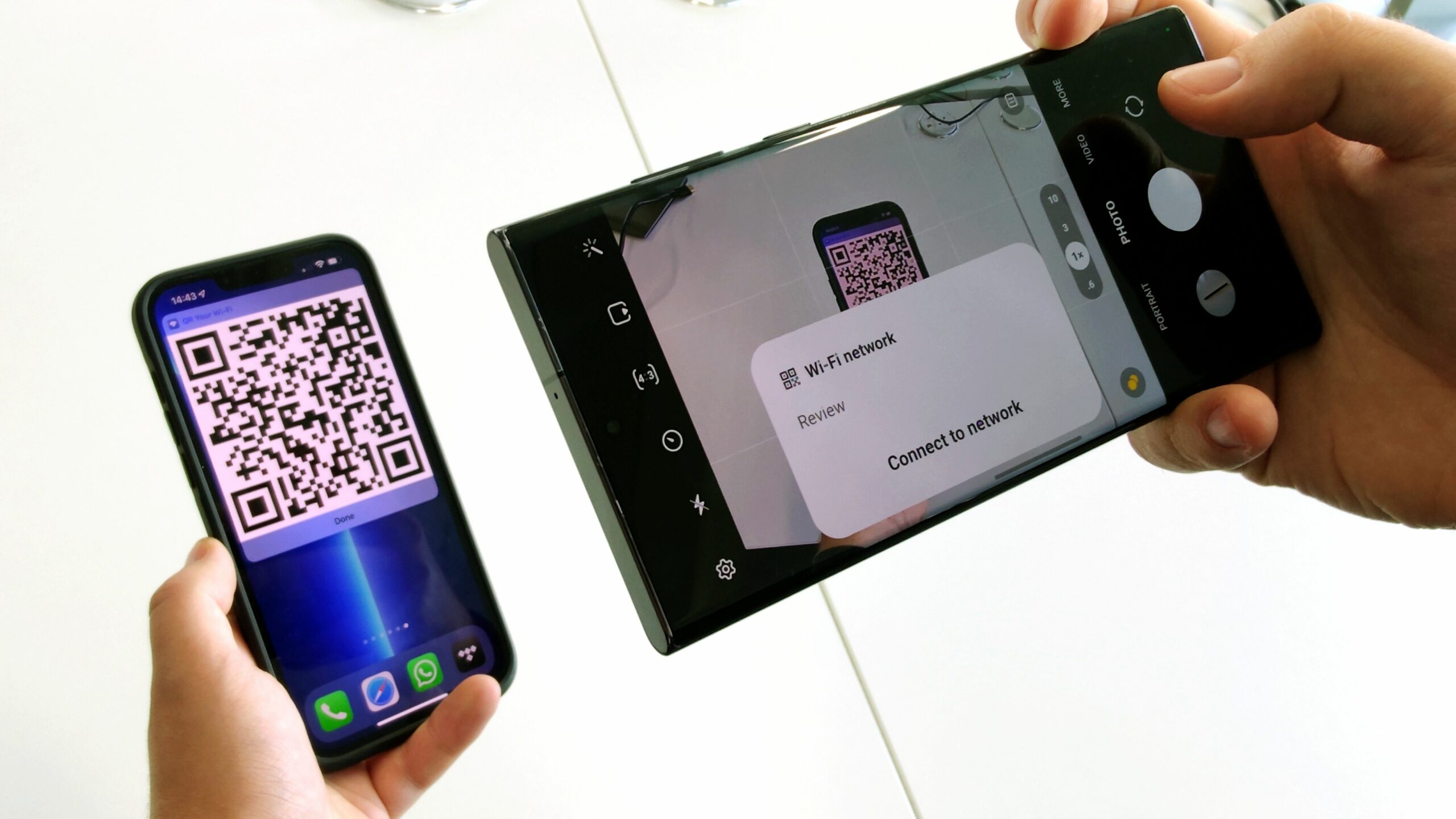
Android users can connect to your iPhone’s Wi-Fi network through a simple QR code scan. Here’s how the sharing process works:
1. Open Android Camera App
- Launch the default camera app on the Android device
- Point the camera at the QR code displayed on your iPhone
- Hold the phone steady until the camera focuses
2. Scan and Connect Process
- A notification banner appears at the top of the screen
- The banner displays the network name (SSID)
- Tap the notification to initiate the connection
The Android device automatically:
- Extracts the network credentials from the QR code
- Saves the Wi-Fi password in the system
- Connects to the network without manual password entry
Quick Tips for Successful Scanning:
- Ensure adequate lighting in the room
- Keep both devices steady during scanning
- Position the QR code within the camera frame
- Maintain a distance of 6-8 inches between devices
You can download a dedicated QR scanner app from the Google Play Store if the Android camera doesn’t recognise the QR code. Popular options include Google Lens or QR Code Reader.
The connection process takes just a few seconds, making it an efficient way to share Wi-Fi between iOS and Android devices. This method eliminates the need to type complex passwords or risk sharing them verbally manually.
Troubleshooting Connection Issues When Sharing a Wi-Fi Password From iPhone to Android
Connection issues can arise when sharing Wi-Fi passwords between iOS and Android devices. Here are the most common problems and their solutions:
1. Network Compatibility Issues
- Outdated Android version
- Incompatible Wi-Fi frequency bands
- Router settings blocking new devices
2. Quick Fixes for Failed Connections
Reset Network Settings
- Android: Settings > System > Reset Options > Reset Wi-Fi
- iPhone: Settings > General > Reset > Reset Network Settings
Check Password Format
- Ensure password contains no special characters
- Verify password length (8-63 characters)
- Remove spaces from beginning or end
3. Security Protocol Adjustments
Your router might use different security protocols. Try these settings in the Visual Codes app:
- Switch from WPA to WPA2
- Test WEP protocol for older devices
- Use mixed mode WPA/WPA2 for broader compatibility
4. Router-Specific Solutions
- Disable MAC address filtering
- Update router firmware
- Check maximum device limit
- Enable 2.4GHz band for older devices
If the QR code method fails consistently, manually enter the network credentials on your Android device. Remember to restart both devices if persistent issues occur.
The ability to share Wi-Fi password effectively creates seamless connectivity in various settings:
- Home environments for family and guests
- Business spaces for employees and clients
- Educational institutions for students and staff
- Public venues offering secure Wi-Fi access
This modern approach to sharing Wi-Fi passwords from iPhone to Android eliminates the need for manual password entry, reducing errors and enhancing security. The QR code system maintains password integrity while providing quick access, making it an essential tool in today’s technology-driven environment.
The rise of cross-platform compatibility tools shows the tech industry’s commitment to breaking down barriers between devices and operating systems. This creates a more unified digital experience for users worldwide.
FAQ Section
Q: Can I share Wi-Fi passwords between iPhone and Android without using QR codes?
A: Yes, you can manually type the password on the Android device, but QR codes offer a faster, error-free method.
Q: Will this method work with all Android phones?
A: Most modern Android devices (running Android 10 or later) have built-in QR code scanning capabilities through their camera app.
Q: Is it safe to share Wi-Fi passwords using QR codes?
A: QR codes are secure for sharing Wi-Fi credentials as they’re encrypted and can only be read by device cameras.
Q: What if the Android phone can’t connect after scanning the QR code?
A: Try these solutions:
- Verify the security type (WPA/WEP) matches your network settings
- Ensure both devices are within range of the Wi-Fi network
- Restart both devices
- Generate a new QR code
Q: Do I need an internet connection to share Wi-Fi passwords this way?
A: No, you don’t need an active internet connection to create or scan QR codes for Wi-Fi sharing.
Discussion about this post