


Learn how to use Canva for stunning designs with our beginner’s guide. Start creating today!
Getting Started with Canva
Creating an Account
Before diving into design, the first step is to set up your Canva account. Head to the Canva website or download the app on your phone. Signing up is straightforward. You can use your email, Google, or Facebook account. Having an account allows you to save your designs and access them from any device. Once you’re signed in, you’re ready to explore the world of design.
Navigating the Home Page
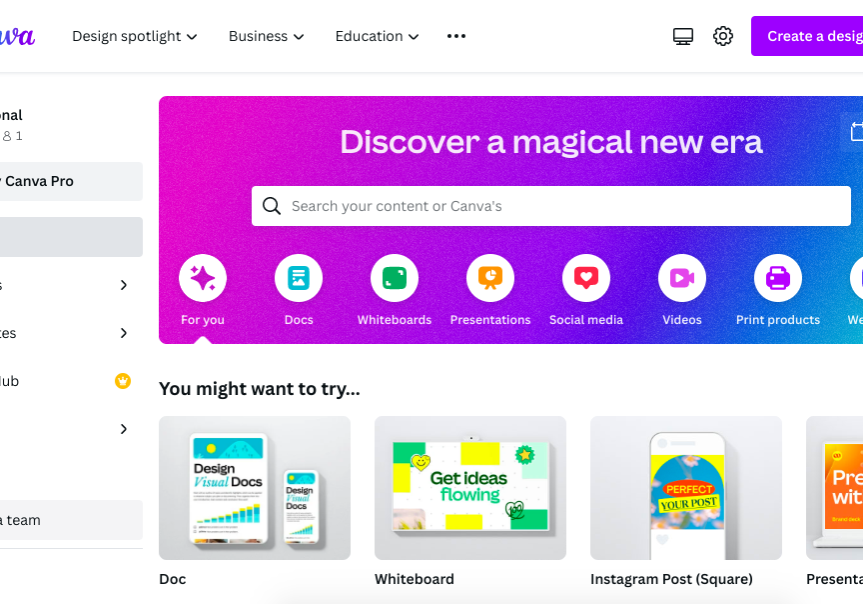
Once logged in, you’ll land on the Canva home page. It’s like your design dashboard. Here, you’ll find a search bar at the top to quickly find templates or design elements. On the left side, there’s a menu with options like ‘Home’, ‘Templates’, ‘Projects’, and ‘Learn’. The home page is where all your recent projects are displayed, making it easy to pick up where you left off.
Exploring Design Categories
Canva offers a wide range of design categories to suit any project. Whether you’re creating a social media post, a presentation, or a flyer, there’s a category for it. Browse through the ‘Templates’ section to see the different categories available. This is where the fun begins. You can explore and choose a design that fits your needs, or start from scratch if you’re feeling creative. Each category is filled with pre-designed templates that you can customize to your liking.
Exploring Canva’s Design Tools

Using the Canva Editor
The Canva Editor is where all the magic happens. It’s like a workspace that lets you bring your design ideas to life. Think of it as your digital canvas. You can drag and drop elements, resize images, and adjust text with just a few clicks. The editor offers a straightforward toolbar at the top where you can find all the basic tools you need to tweak your design. Whether you’re adding a new shape or changing the color of your text, everything is right there at your fingertips.
Incorporating Elements and Text
In Canva, adding elements and text is as easy as pie. You can choose from a vast library of shapes, icons, and illustrations to give your design a unique flair. Once you find an element you like, just click to add it to your design. For text, Canva offers a wide range of fonts and styles. You can use font size, color, and effects to make your message pop. Experiment with different combinations to see what works best for your project.
Customizing Templates
Canva’s templates are a game changer for anyone looking to create professional designs without starting from scratch. Once you pick a template, you can customize every part of it. Change the background, switch out images, and adjust the text to fit your needs. The best part? You don’t need to be a design expert to make it look good. Just follow your instincts and tweak the template until it feels right. Remember, the goal is to make the design your own.
Creating Your First Design
Choosing a Template
Starting your first design on Canva is like opening a treasure chest of creative possibilities. First, you need to pick a template that fits your project. Whether you’re making a poster, a social media post, or a business card, Canva offers a variety of templates to choose from. Choosing the right template is key because it sets the tone for your project. You can browse through categories or use the search bar to find something specific. Once you find a template you like, click on it to open it in the editor.
Adding and Editing Elements
Once you have your template, it’s time to add some personal flair. On the left side of the editor, you’ll see options for adding elements like shapes, lines, icons, and photos. Click on ‘Elements’ to explore what’s available. You can drag and drop these onto your design, resize them, and move them around. To edit text, just click on any text box, and start typing. You can change the font, size, color, and alignment using the top toolbar. If you want to add your own images, click on ‘Uploads’ and upload files from your device.
Saving and Exporting Your Design
After you’ve perfected your design, it’s time to save and share it. Canva automatically saves your work, but you can also click ‘File’ and then ‘Save to folder’ to organize your designs. When you’re ready to share, click on the ‘Share’ button at the top right. You can download your design in various formats like PNG, JPG, or PDF. If you’re planning to print, make sure to choose the right format for high quality. Canva also offers options to share directly on social media or via email. Remember, your design journey doesn’t end here—keep experimenting and refining your skills!
Advanced Features in Canva
Utilizing Canva Pro
Canva Pro is like Canva’s premium club. It offers a bunch of extra tools that can enhance your designs. With Canva Pro, you can access a huge library of premium photos, videos, and audio. Plus, you can use the background remover tool, which is super handy when isolating elements in your design. Another cool feature is creating a brand kit, which lets you save your brand’s colors, logos, and fonts for easy access. If you’re serious about designing, Canva Pro is worth considering.
Collaborating with Team Members
Working with others on Canva is a breeze. You can invite team members to view, comment, or even edit your designs. This is great for projects that need input from multiple people. Just click the ‘Share’ button, enter their email addresses, and set their permission levels. You can decide if they can just view, comment, or have full editing rights. This makes teamwork smooth and efficient.
Exploring Animation and Video Tools
Canva isn’t just for static designs; it also has some neat animation and video tools. You can animate text and elements to give your designs some movement. There are preset animations, or you can customize your own. For video, Canva offers basic editing features like trimming and adding music. You can create engaging video content without needing to be a pro. Just drag and drop your video clips, add some music, and you’re good to go!
Sharing and Publishing Your Designs
Sharing via Social Media
Once you’ve crafted your masterpiece in Canva, it’s time to show it off! Sharing your designs on social media is a breeze. Head to the top right corner and click Share. From there, you can connect your social media accounts and post directly. Whether it’s Facebook, Instagram, or Twitter, Canva has got you covered. Just make sure your design is the right size for the platform you’re using. A quick tip: check Canva’s templates for social media to ensure your design fits perfectly.
Collaborating and Feedback
Want to get some input before going live? Canva makes it easy to collaborate with others. Click on the Share button and invite your team by entering their email addresses. You can give them different levels of access—allow them to edit, comment, or just view. This is a great way to gather feedback and make improvements. Collaboration can turn a good design into a great one!
Printing and Downloading Options
If you need a hard copy or want to keep a digital file, Canva offers several download options. You can download your design as a PDF, PNG, or JPEG. For those who prefer tangible results, Canva’s printing service is just a click away. Order prints directly through Canva and have them delivered to your door. It’s a simple way to bring your digital designs into the real world.
Tips and Tricks for Effective Design
Using Color and Typography
Color and typography are two of the most potent tools in a designer’s toolkit. Color sets the mood and can evoke emotions, while typography affects readability and the overall aesthetic. When choosing colors, consider the psychology behind them; for instance, blue often conveys trust and calmness, while red can evoke excitement and urgency. Use a color wheel to find complementary colors that work well together.
For typography, simplicity is key. Stick to one or two fonts to maintain a clean look. Typographic hierarchy can help guide the viewer’s eye by varying the font size and weight. Ensure your text is legible; avoid overly decorative fonts that might be hard to read.
Balancing Elements and Space
A well-balanced design is pleasing to the eye. Use grids to align elements, which can help create a harmonious layout. Negative space, or white space, is just as important as the objects in your design. It helps to prevent clutter and allows the design to “breathe.”
Consider the rule of thirds, a classic technique where you divide your design into nine equal parts using two horizontal and two vertical lines. Place your key elements along these lines or at their intersections to create more interest.
Incorporating Brand Identity
Your design should reflect the brand’s identity consistently. This includes using specific colors, fonts, and imagery that align with the brand’s message. If you’re working with a brand, keep their guidelines in mind to ensure your design is recognizable and true to their identity.
Create a style guide for your brand if one doesn’t exist. This should include your color palette, typography, and any other design elements that define your brand. This guide will help maintain consistency across all your designs.
Frequently Asked Questions
How do I start using Canva?
To begin using Canva, go to their website and create an account using your email or social media. Once you’re signed in, you can explore templates and start designing.
Can I use Canva for free?
Yes, Canva offers a free version with lots of features. However, there is a paid Pro version that unlocks more tools and resources.
How can I add text to my design?
To add text, click on the ‘Text’ tab in the editor, then drag and drop a text box onto your design. You can customize the font, size, and color.
What is Canva Pro?
Canva Pro is a paid subscription that offers extra features like premium images, more storage, and advanced design tools.
Can I collaborate with others on Canva?
Yes, Canva allows you to share your designs with others so they can view or edit them, making teamwork easy.
How do I save my design?
Canva automatically saves your work, but you can also click ‘Download’ to save it to your computer in various formats like PNG or PDF.
Discussion about this post