
There is a whole economy around this in Nigeria. On any given day in Ikeja Computer Village, in the electronics strips of Alaba International, or in small repair shops tucked into Enugu or Kano markets, someone’s phone is being flashed. The technician plugs the device into a laptop, loads a scatter file, hits download, and within minutes a phone that was stuck on a logo screen or completely dead is back to life. Most people who bring in phones for this treatment barely know what happened. They just know it worked.
The problem is when people try it themselves without fully understanding what the process involves. One wrong file, one disconnected cable at the wrong moment, and a phone that could have been saved is now a paperweight. That outcome is more common than it should be, and it traces back to the same thing every time: going into the process blind.
This guide exists to change that. It explains what flashing actually does, walks through the tools that matter most for the phones Nigerians actually use, and is honest about when the smart move is to close the laptop and hand the phone to someone who does this for a living.
How to Flash an Android Phone in Nigeria
Flashing an Android phone is one of those procedures that sounds more complicated than it needs to be, but it also carries real consequences if it goes wrong. The right approach depends almost entirely on what phone you have, what is wrong with it, and whether you have the correct files before you begin. This guide breaks that down by brand and method, starting from the basics and moving into the steps that actually work.
What Flashing Actually Does to Your Phone
Flashing means writing new firmware onto a phone’s internal storage. Think of it the same way you’d think of reinstalling Windows on a laptop. The existing operating system, everything sitting on top of it, and in most cases all personal data, gets wiped out. What replaces it is a fresh copy of the phone’s software, typically in the form of a stock ROM (the manufacturer’s original firmware) or, in some cases, a custom ROM built by independent developers.
The reason people flash phones in Nigeria is straightforward. A phone starts boot looping, which means it powers on, gets to the manufacturer’s logo, restarts, and repeats indefinitely without ever loading. Or the system crashes so badly that even factory reset from recovery mode stops working. Or the phone gets hit with malware that survives a normal reset. Or someone forgets a password and recovery mode cannot help. Flashing gets past all of these because it works at a level below the operating system.
What it does not fix is physical damage. If a phone’s motherboard is damaged, its charging port is broken, or its screen has failed at a hardware level, flashing will not help. The confusion between software and hardware problems costs people money every time, especially when they pay a technician to flash a phone that actually needed a board repair. Before going anywhere near a flashing tool, rule out hardware first.
There are two types of firmware you can flash. A stock ROM is the official software that came with the phone, sometimes updated. A custom ROM is a version of Android built by outside developers, offering different features or a cleaner interface. For most Nigerians dealing with a broken or misbehaving phone, stock ROM is the correct choice. Custom ROMs are for enthusiasts who know exactly what they are getting into.
When Flashing Makes Sense and When It Does Not
Flashing is the right call in specific situations. If a phone is stuck in a boot loop and factory reset has already been tried from recovery mode without success, flashing is the logical next step. If the device powers on but cannot load Android at all, even after multiple force restarts, flashing is likely what is needed. Same goes for phones that show a black screen but still vibrate, suggesting the system is alive but the software cannot load.
It also makes sense when a phone has been infected with persistent malware that a normal factory reset cannot clear. Some malware embeds itself into the system partition, which a standard wipe does not touch. Flashing the entire firmware, including system partitions, clears it properly. This is more common with phones that have had APKs installed from outside the Google Play Store, which happens often enough in Nigeria given the prevalence of pirated apps and game mods circulating on WhatsApp.
Where flashing does not make sense is when the problem has not been properly diagnosed yet. A phone that is slow, draining battery fast, or overheating is not necessarily a candidate for flashing. Those issues often trace back to a specific app, low storage, or an old battery. Flashing will not fix a worn-out battery. It will not fix a storage chip that is failing. And it will not fix a camera or speaker that has a hardware fault. People sometimes end up worse off because they flashed a phone that just needed its storage cleared or a bad app removed.
Another scenario where flashing is not ideal: phones still under warranty. Carlcare, which is the official service center for Tecno and Infinix phones in Nigeria, with a location at Oba Akran Avenue in Ikeja, Lagos, offers free flashing for phones within their warranty period. If your phone qualifies, there is no reason to attempt a DIY flash when you can hand it over at no cost and without risking a brick.
Before You Flash: What You Must Get Ready
The most dangerous thing about flashing is that mistakes are not reversible. Once you push wrong firmware to a phone’s preloader partition and the device hard bricks, there is no undo button. This is why preparation matters more than anything else in this process.
The first thing to sort out is the firmware file. You need the exact stock ROM for your phone’s specific model number, not just the brand or the general name of the device. A Tecno Spark 10 and a Tecno Spark 10 Pro are different phones with different firmware. Flashing the wrong one can kill the device. Model numbers are usually printed on the back of the phone or can be found in Settings under About Phone. Download firmware only from official sources or trusted repositories like XDA Developers or the manufacturer’s support page. Random links from forums or Telegram groups carry real risk.
Your computer needs to be running Windows. SP Flash Tool, which handles MediaTek-based phones like most Tecno and Infinix models, runs on Windows. Odin, the tool for Samsung devices, is also Windows-only. A 64-bit Windows 10 or 11 machine works fine for both. Make sure the computer has enough free storage to hold the firmware file, which can range from 2GB to 6GB depending on the phone.
You need the correct USB drivers installed before you connect the phone. For MediaTek phones, this means the MTK VCOM drivers. For Samsung, it is the Samsung USB drivers available from their support page. Without the right drivers, the flashing tool will not detect the phone. This is one of the most common reasons people get stuck.
Charge the phone to at least 50 percent before you start, and use a quality USB cable. A frayed or cheap cable that disconnects mid-flash is one of the fastest ways to brick a device. If possible, use the original cable that came with the phone. And back up whatever you can before starting. Contacts can often be exported to a SIM card or Google account. Photos can be copied to a laptop or cloud storage. The flash will wipe everything, and there is no getting that data back after.
Flashing Tecno and Infinix Phones with SP Flash Tool
SP Flash Tool is the most widely used tool for flashing MediaTek-based Android phones, and it is what most phone technicians in Nigeria use for Tecno, Infinix, and iTel devices. All three brands are made by Transsion Holdings and run on MediaTek chipsets, which means the process is essentially the same across the board.
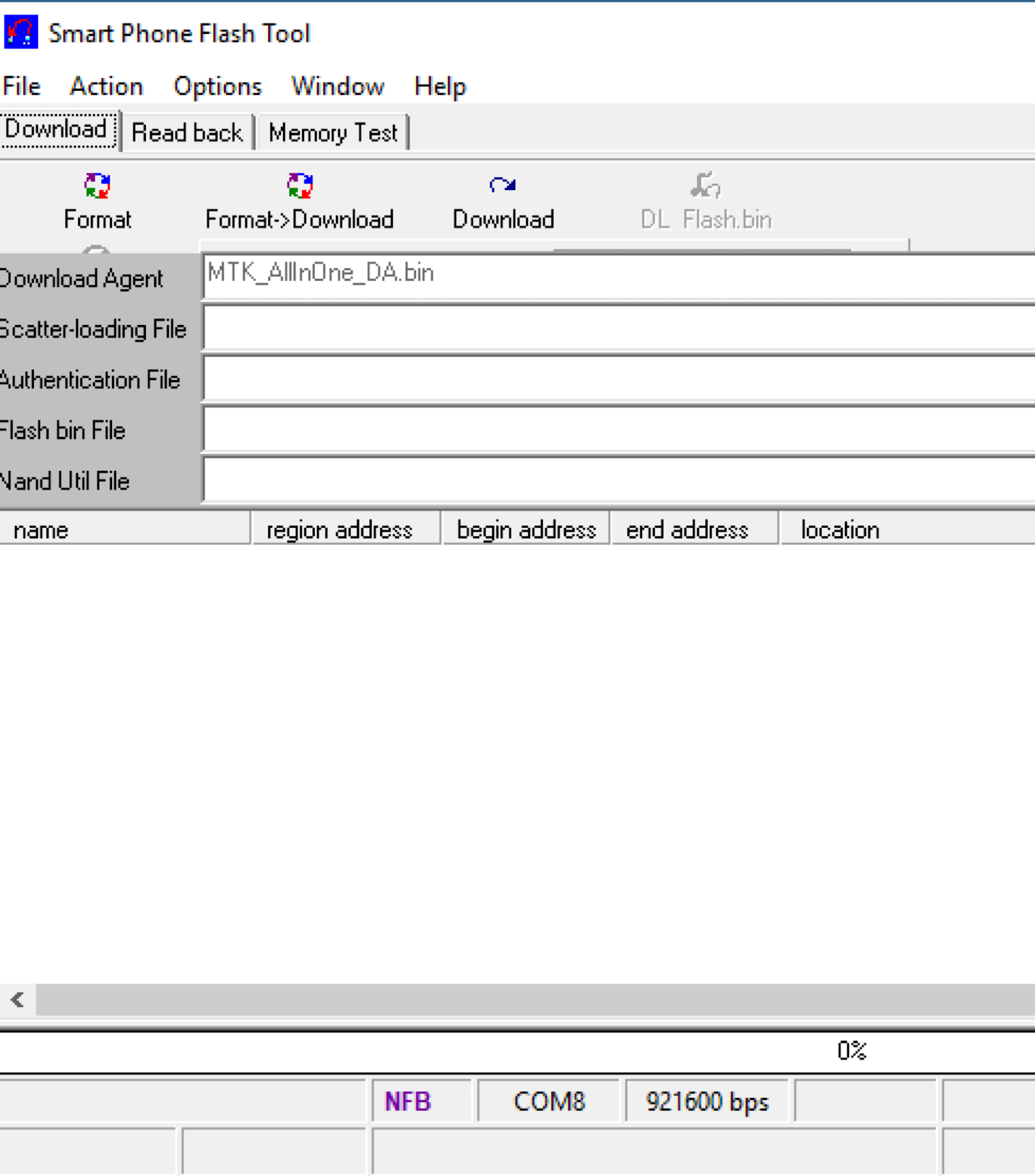
Start by downloading the latest version of SP Flash Tool from the official site at spflashtool.com. Extract the folder but do not install it; it runs directly as an executable. Before opening it, install the MTK VCOM USB drivers on the Windows computer. Then extract your firmware file into a clearly labelled folder. Inside the firmware folder you will find several files, and the one you need to locate is the scatter file. This is a plain text file with the word ‘scatter’ in its name and a .txt extension. It maps out how the firmware partitions should be written to the phone.
Open SP Flash Tool as administrator. On the top right of the interface, click the Scatter-loading button and navigate to your firmware folder to select the scatter file. Once loaded, a list of partitions will appear. In the top-left dropdown, select ‘Download Only’. This is important. One critical instruction that every guide on this agrees on: do not tick the preloader partition. Flashing the preloader with an incompatible file is one of the most reliable ways to permanently brick a MediaTek device.
Switch off the phone completely. Do not boot into any recovery mode; just power it off. Connect it to the computer via USB with the battery inside. SP Flash Tool will detect the device automatically, and the flashing process will begin. While it runs, do not touch the phone, do not disconnect the cable, and do not let the computer go to sleep. The progress bar will move across the screen, and when it finishes, a green circle will appear. That green circle means success. Disconnect the phone, remove and reinsert the battery if it is removable, and power on. First boot after a flash can take up to 15 minutes, so do not panic if it takes a while.
If the phone is not detected after connecting, try holding the Volume Down button on the phone before plugging in the USB cable. Some MTK devices enter download mode this way. Others need Volume Up, and a few need both volume buttons held simultaneously while connecting. Your firmware download source or the XDA thread for your specific model will usually tell you the correct combination.
Flashing Samsung Phones with Odin
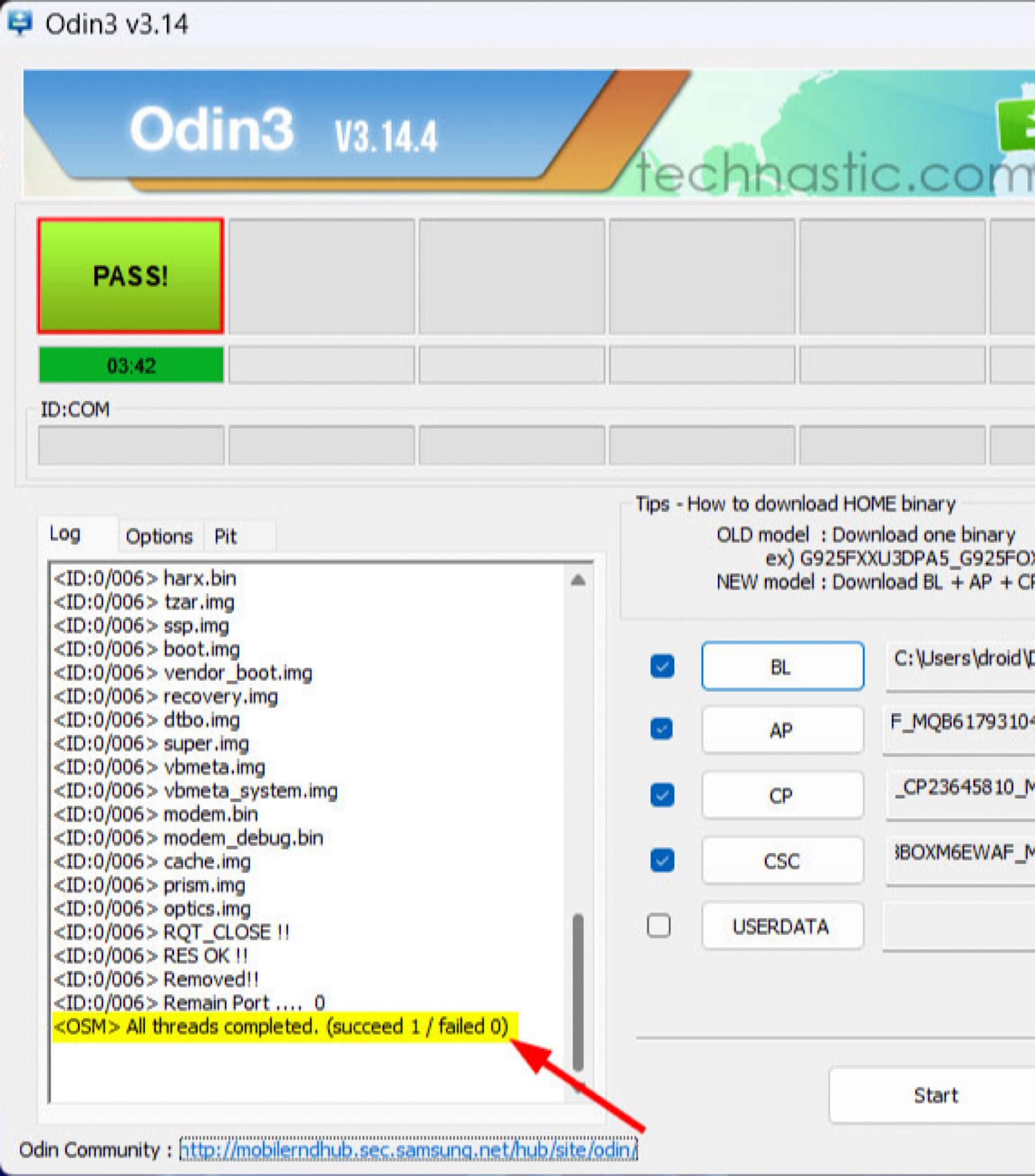
Samsung phones use a completely different architecture from Tecno and Infinix, and they need their own tool. Odin is the internal flashing software Samsung uses in its service centers. It was never officially released to the public, but it has been available through leaks for years and is now the standard tool for anyone flashing a Samsung device outside of official channels. XDA Developers hosts the most trusted copies.
Samsung firmware files come in a specific format with four components: BL (bootloader), AP (the main Android system), CP (modem), and CSC (carrier and region settings). All four need to be downloaded for your specific Samsung model and region. The Samsung firmware site samfw.com is one of the most reliable places to get these files. Do not mix firmware from different regions or models.
To enter Download Mode on most Samsung devices, power off the phone, then hold Volume Down and connect the USB cable to the computer. On newer Galaxy models, the key combination may differ slightly. Once in Download Mode, you will see a warning screen. Press Volume Up to proceed. Odin should detect the device immediately, and the COM port at the top left of the interface will light up blue, which confirms the connection.
Load each firmware file into its corresponding slot: BL, AP, CP, and CSC. One detail worth paying attention to here: Odin offers two CSC file options. The one labelled HOME_CSC will flash without wiping your data. The regular CSC_ file wipes the phone. For a clean software fix, the HOME_CSC option is usually recommended unless there are specific reasons to do a full wipe. Once all files are loaded, click Start and wait. A green PASS message at the top of the Odin log means the flash completed successfully. The phone will reboot on its own.
One thing that catches people out with Odin: Samsung KIES, Samsung Smart Sync, and Samsung Smart Switch must all be uninstalled or closed before using Odin. These applications interfere with the device connection and can cause the flash to fail or stall partway through.
Flashing Without a Computer: The Recovery Mode Method
Not everyone has a Windows laptop at home, and in Nigeria that is simply the reality for a large chunk of people who need their phone fixed. There is a limited option for flashing without a computer, but it requires preparation that most people do not have in place before their phone breaks, which is the main catch.
If your Android phone has a custom recovery environment called TWRP (Team Win Recovery Project) already installed, you can flash a new ROM from it without needing a computer. TWRP replaces the phone’s stock recovery with a more capable interface that allows installing firmware from an SD card or the phone’s internal storage. The process involves booting into TWRP by holding specific button combinations at startup (usually Volume Up + Power, though this varies by device), wiping data and cache from within TWRP, then navigating to the firmware ZIP file you previously transferred to the phone and selecting Install.
The issue is that TWRP needs to be installed before the phone breaks, because once a phone is hard bricked or stuck in a boot loop that prevents recovery access, you cannot install TWRP retroactively without a computer. Think of it as a safety net you set up in advance, not something you can put in place after the emergency.
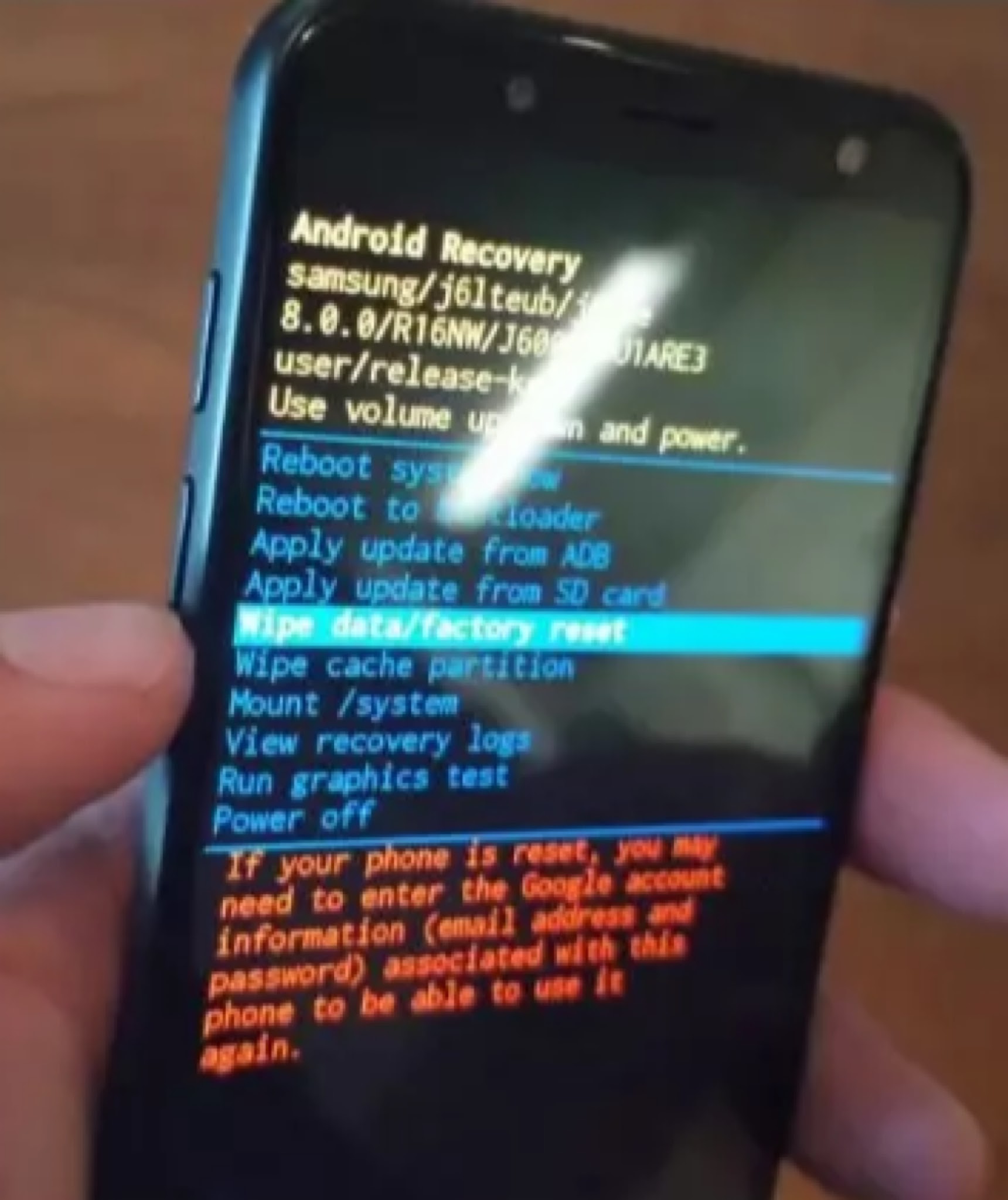
For phones without TWRP, there is another option that works in situations where Android can still partially load. Some phones allow ADB (Android Debug Bridge) sideloading through the stock recovery mode. You boot into recovery, select ‘Apply update from ADB’ or ‘Apply update from phone storage’, and either sideload the firmware from a connected computer or install it from the SD card directly. This method is less universal and depends heavily on whether the phone’s stock recovery supports it, but it is worth knowing about for situations where SP Flash Tool or Odin is not an option.
The Real Risks Every Nigerian Should Know Before Touching Their Phone
The most serious risk is bricking. A bricked phone cannot be turned on or used in any way. A soft brick is when the phone turns on but cannot load Android, which is usually recoverable. A hard brick is when the phone does not respond to anything at all, including flashing tools and recovery mode. Hard bricks are typically caused by flashing the wrong preloader file or by a flash that was interrupted at a critical point. Some hard-bricked phones can still be recovered by experienced technicians with the right equipment, but many cannot.
The second risk is IMEI corruption. The IMEI is the unique 15-digit identifier that lets mobile networks recognise your phone. During a flash, if the EFS partition (where IMEI data lives on MTK devices) gets corrupted or accidentally overwritten, the phone will show ‘Unknown’ or ‘Invalid IMEI’. A phone with no IMEI cannot make calls or connect to any mobile network. It is still usable on Wi-Fi, but as a phone it is essentially broken. IMEI can sometimes be restored by a technician using specialised tools, but this is a separate procedure and not always successful.
The third risk is data loss. Flashing always wipes personal data. Contacts not backed up to Google, photos not in cloud storage, chats not exported, voice memos, documents stored locally; all of it is gone. There is no partial save. The only exception is if you use the HOME_CSC option in Odin for Samsung, which sometimes preserves data, but even this should not be relied on as a guarantee.
Warranty is another consideration. Once you flash unofficial or custom firmware on a phone, the manufacturer’s warranty is typically void. Tecno and Infinix phones flashed outside of Carlcare lose their eligibility for free repairs. This matters more if the phone is relatively new. If your Tecno Spark is six months old and still under warranty, going to Carlcare is the smarter financial decision, not just the safer technical one.
When to Walk to a Repair Shop Instead
Knowing when to stop is part of the skill. If you have confirmed the firmware file is correct for your model, installed the right drivers, followed the process exactly, and the phone still is not being detected by SP Flash Tool or Odin, that is often a hardware signal. A faulty USB port on the phone, a damaged charging IC, or a partially failed motherboard can all produce symptoms that look like software problems but are not.
If a phone has physically been in water, dropped hard, or shows screen damage, do not attempt to flash it. The internal damage from liquid or impact can cause unpredictable behaviour during a flash, including hard bricks that could have been avoided. Take it to a technician first.
For people in Lagos, Ikeja Computer Village remains the most concentrated hub for phone repairs of any kind in the country. Technicians there flash phones daily and have access to firmware for models that are otherwise difficult to find. Prices for software flashing generally range from around N2,000 to N5,000 depending on the model and the shop. More serious repairs cost more, but for a straight software flash on a Tecno or Infinix, that range is typical in the market.
Carlcare at Oba Akran Avenue, Ikeja, handles Tecno and Infinix phones officially. They can be reached on their Nigerian hotline at 2013942900. If the phone is under warranty, the flash is free. If it is out of warranty, the service fee is reasonable compared to the risk of a DIY brick. For Samsung users, Samsung’s official service partners in major cities across Nigeria handle Odin-level repairs and firmware restoration.
For Nigerians in other cities, Abuja’s Wuse market and Kano’s Sabon Gari have established phone repair ecosystems worth checking. Port Harcourt and Ibadan both have clusters of repair shops where MediaTek flashing is routine. The skill is not rare in Nigeria; the tools and knowledge are widely distributed. If you are not completely confident in the process, there is no shame in paying for someone who does this every day.
Software Problems Have Software Solutions, If You Approach Them Right
Flashing an Android phone is genuinely one of the most powerful fixes available for phones that have gone wrong at a software level. A device that seems completely dead can be brought back by writing fresh firmware to it. That is not magic; it is just understanding how Android storage works and using the right tool for the right chipset.
But the same power that makes flashing useful is what makes it dangerous when done carelessly. The gap between a recovered phone and a hard-bricked one is often a single wrong file or a disconnected cable. The fundamentals matter: correct firmware for the exact model, right drivers installed, stable USB connection, and patience. Skipping any of those is how people lose phones that could have been saved.
For Nigerians specifically, the landscape is actually not bad. Transsion’s dominant market position means that Tecno and Infinix firmware is well-documented and widely available. There are dozens of active Nigerian Android communities on forums and Telegram groups where people share scatter files, swap tips, and walk each other through tricky flashes. That knowledge network is a real resource. Use it before touching the flash tool, not after something goes wrong.