

Windows is rightly considered the most secure OS currently available on the market. Windows 10 also boasts such advanced functions as virtual desktops, GodMode that made its triumphal comeback, new, more convenient keyboard shortcuts, and scheduled restart, which was arguably the most anticipated feature. Unfortunately, even such a seemingly flawless operating system is not immune to errors. Though Microsoft releases patches for their products on a regular basis, Windows 10 may unpleasantly surprise its users with the black screen, one the most dreaded errors. The reason why users become so petrified of seeing Windows 10 black screen is that they don’t know what is actually hidden behind this impenetrable darkness. Still, there is no need to get upset. We have some workable fixes you can try if you see the black screen on your monitor one day.
Fixing the Windows 10 Black Screen During Installation
We often Windows 10 users may see a black screen during the installation of their operating system. Such a problem may occur if the installation is not complete and still progressing in the background. If you own a low-end machine, we recommend that you let leave it alone for several hours. Chances are that things will get to normal as soon as the installation finishes. On high-end PCs, this process will take considerably less time, of course. Thus, the very first thing you can do to solve the black screen problem is to give you system more time and see what happens.
If your patience has yielded no positive results, we suggest that you try another solution, which is also quite easy and doesn’t require much expertise. Hold down you power button for at least ten seconds. By doing so, you force your system to shut down. After that, unplug all peripherals and output devices you’re not using at this moment. Try starting you computer again and proceed with the installation.
If you’ve followed our recommendation to the point, but the annoying black screen issue still persists, you may try to install your Windows 10 from a bootable USB drive. (For more detailed information check out complete guide on RocketFiles.com).
Make Sure You Monitor Works Properly
Though this solution may appear too easy to be effective, still you definitely should give it a shot. Prior to resorting to time-consuming troubleshooting, you may want to start with the small and the most obvious. Once you make sure your monitor is turned on, you’ll need to check all of your monitor’s data transfer cables. Make sure that are fully inserted and supply your monitor with essential power. Try unplugging your monitor power cable waiting for a minute. After that, plug it in again. See, if have managed to fix the problem.
Wake It Up!
If you were AFK for some time and returned to the total blackness, chances are good that your computer had got tired and gone to sleep. Oftentimes a PC will appear to be unresponsive when actually it’s just having problems resuming from either the Sleep or Hibernate power saving mode in Windows 10. Should it be the case, try moving your mouse or pressing a spacebar and thus make it return to its digital consciousness.
Still, it’s also possible that you OS is merely incapable of detecting your monitor. In such a case, you need to press the combination of the following keys: Windows key + Ctrl + Shift, and B. This will serve as cold shower for your sleepy computer.
Boot into Safe Mode
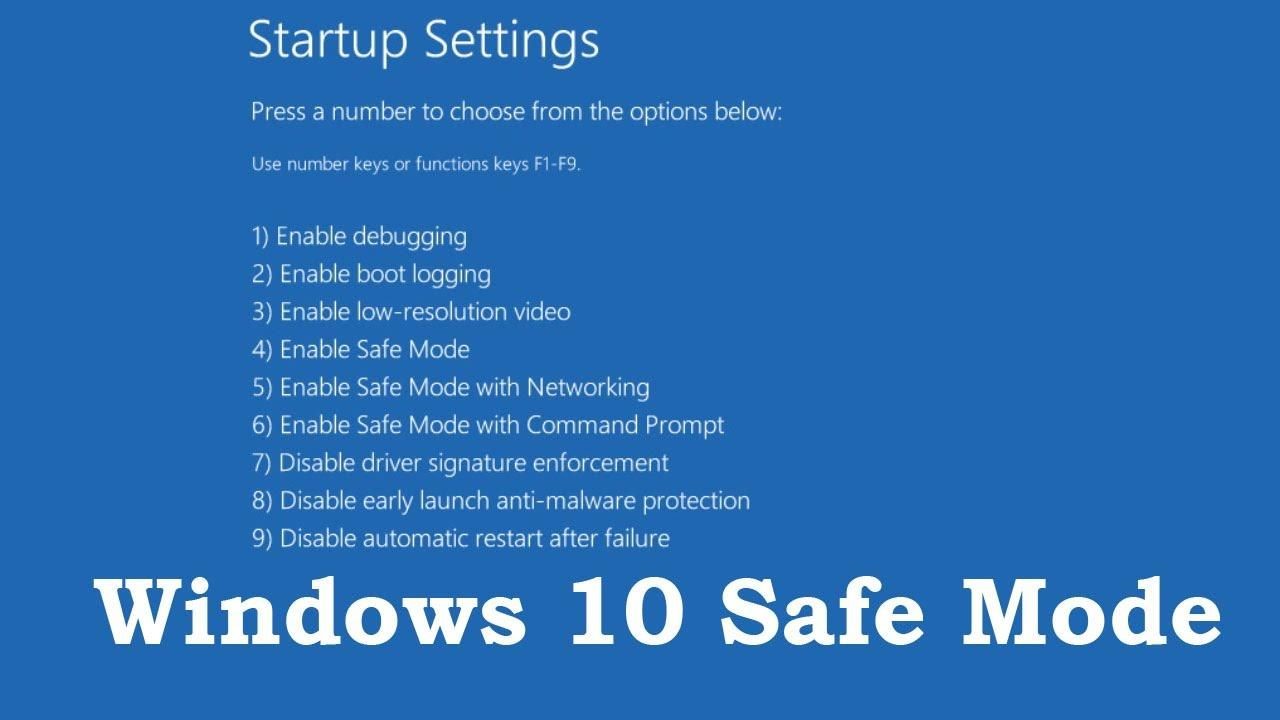
Booting your PC into safe mode is rightly considered one of the most popular and effective fixes to most Windows 10 errors. The same goes for the black screen error.
It’s a good idea to try to boot you comp with only essential programs running. If this method proves to be effective, start enabling the previously disabled programs one by one and try booting your PC with them. Thus, you’ll be able to identify the troublesome program or application that causes the black screen error.
To boot your comp in safe mode, do the following:
- Start you PC and hold down the Shift key.
- Click on the power button in the lower right corner of your screen and choose the Restart option.
- If the notorious black screen prevents you from seeing and selecting the required options, you’ll need to press the power button and reboot your computer one more time. Repeat this procedure tree time and your system will activate the automatic repair function.
- Go to the advanced startup menu and select the Troubleshoot option from there.
- Select advanced options.
- Navigate to Startup Settings.
- Hit the Restart button.
- Press 5 or F5 to enter Safe mode with Networking.
Hope it’s helped! Still, if your computer still doesn’t show anything on the monitor, you’ll probably need to seek professional help from a computer repair service.